
Chart maker
Grouped Bar Chart Maker
Compare several series side by side
A grouped (clustered) bar chart places several bars side by side for each category, one per sub-category, so you can compare series within a group and across groups at once. InstaCharts builds it straight from your spreadsheet and keeps every series on a shared zero baseline for precise comparison.
A live grouped bar chart example
An interactive grouped bar chart built and embedded with InstaCharts.
Your data
What data you need for a grouped bar chart
Paste your spreadsheet, upload a CSV or Excel file, or connect a Google Sheet, and InstaCharts detects your column types and builds the grouped bar chart automatically.
X-Axis
Dates or categorical data, the main groups
Y-Axis
Numerical values, starting at zero
Breakdown
A category column; each unique value becomes a bar within the group
Use cases
When to use a grouped bar chart
Best uses
- Compare sub-categories both within and across groups
- Read absolute values precisely thanks to a shared baseline
- Analyze several series over the same time periods
- Check whether one series consistently leads across groups
When another chart fits better
- More than four or five bars per group gets cluttered
- When proportions matter more than absolutes, use a stacked bar chart
- Dense continuous trends read better as a grouped line chart
How it works
How to make a grouped bar chart
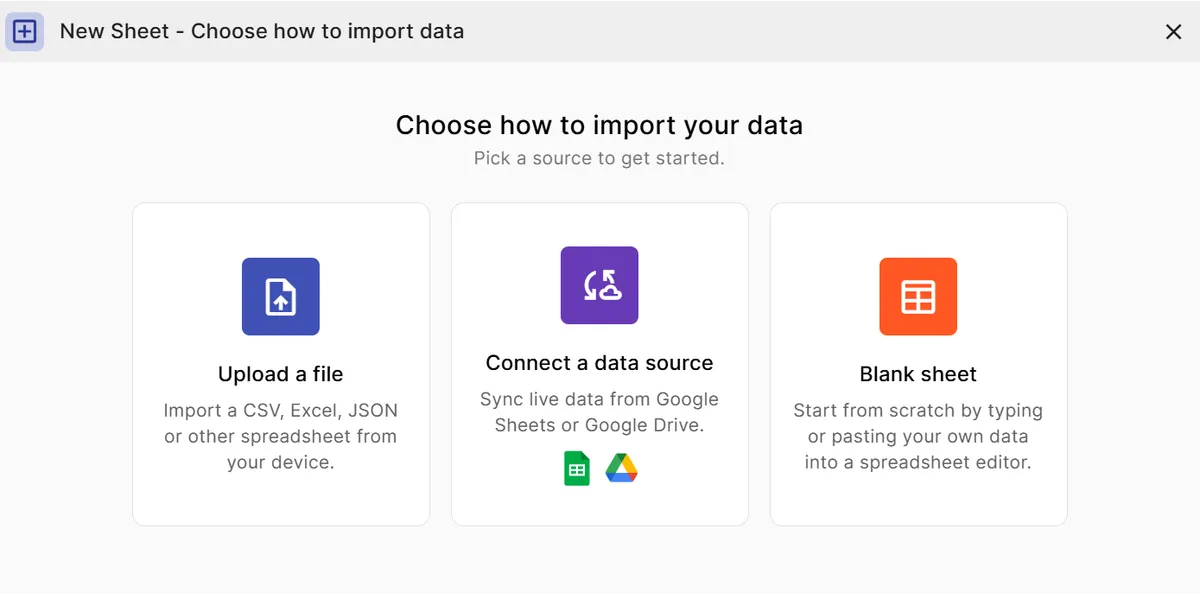
Step 1
Add your data
Paste a spreadsheet, or upload a CSV, Excel, TSV, or JSON file.
Step 2
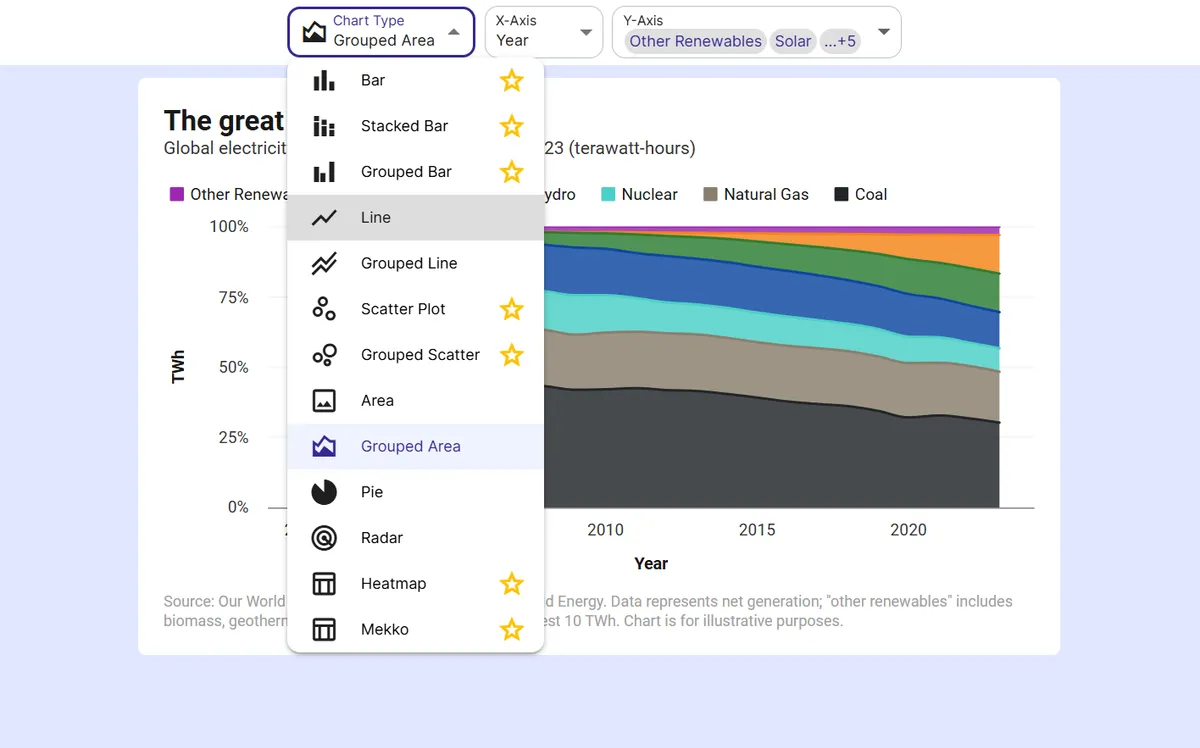
Pick the grouped bar chart
InstaCharts auto-suggests a chart; switch to this type in one click.
Step 3
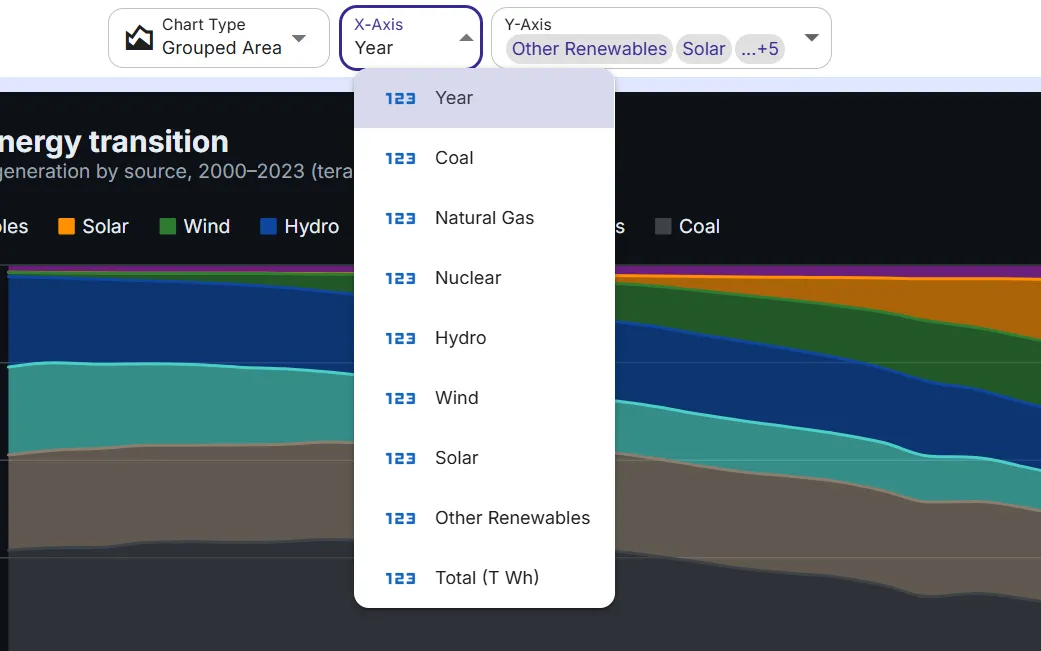
Map your columns
Choose which columns drive each axis, or accept the smart defaults.
Step 4
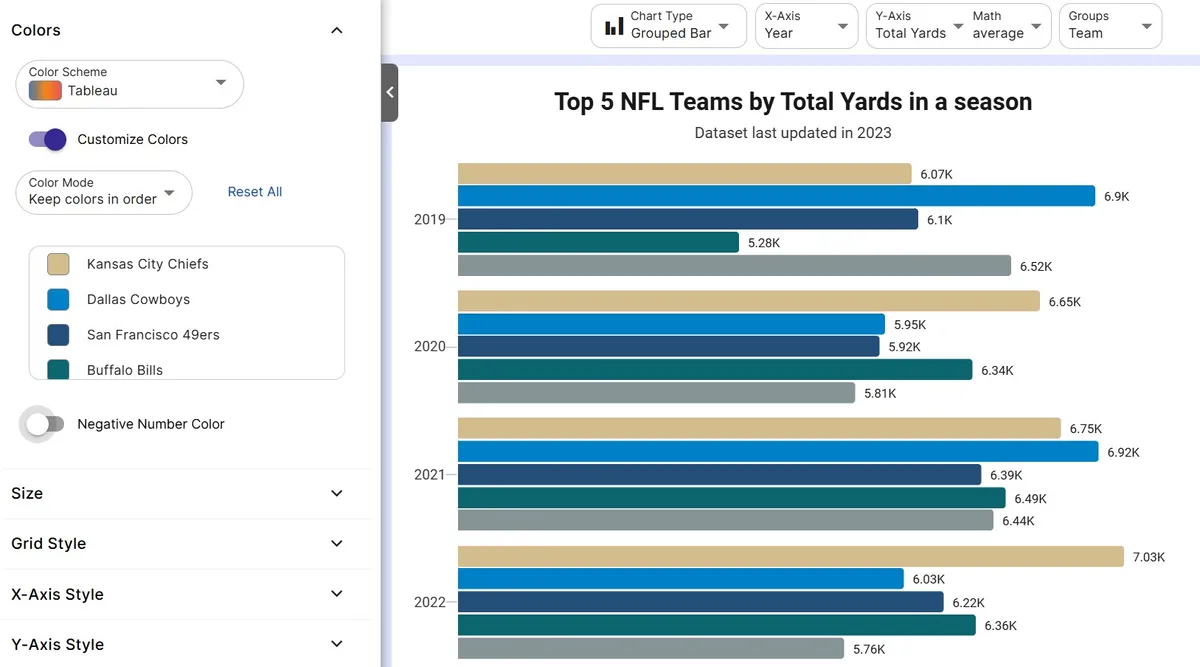
Customize styling
Adjust colors, labels, and titles to match your brand or report.
Step 5
Export or embed
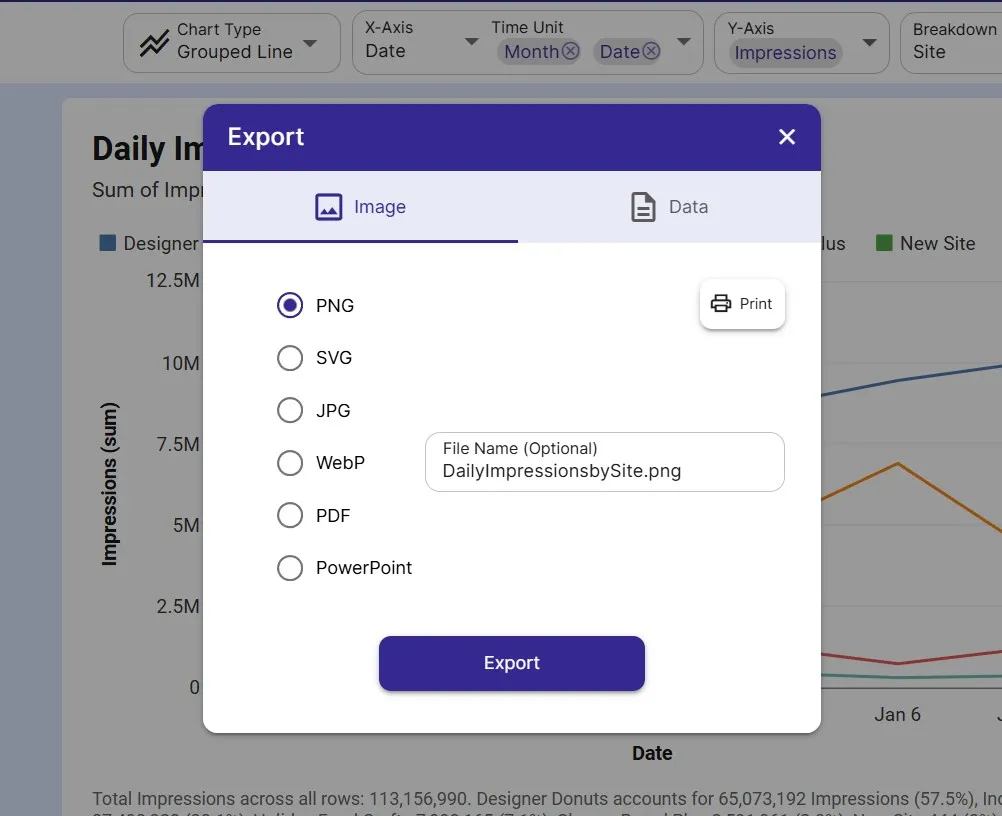
Download as PNG, SVG, or PDF, share a link, or embed a live, auto-updating chart.
FAQ
Grouped Bar Chart maker FAQ
Answers to common questions about making a grouped bar chart with InstaCharts.
Is the grouped bar chart maker free?
Yes. Creating and exporting a grouped bar chart is free with no account. The free tier supports up to 500 rows and adds a watermark; paid plans from $10 user/mo remove it.
What is the difference between a grouped and a stacked bar chart?
A grouped bar chart places bars side by side on a shared baseline, which is best for precise value comparison. A stacked bar chart stacks segments into one bar, which is best for showing part-to-whole composition. InstaCharts lets you switch between them in one click.
What data do I need for a grouped bar chart?
A category column for the X-axis, a numeric value column, and a breakdown column whose unique values become the bars within each group.
How many series can I compare?
You can plot several series, though four or five bars per group keeps the chart readable. You can filter or limit categories directly in InstaCharts to avoid clutter.
Want the full reference?
Read the grouped bar chart documentation.
Explore
Related chart makers
Compare related chart types, or browse every InstaCharts chart maker below.
Bar Chart Maker
Compare values across categories online
Stacked Bar Chart Maker
Show totals and composition in one chart
Grouped Line Chart Maker
Compare multiple trends on one chart
All InstaCharts chart makers
- Bar Chart Maker
- Stacked Bar Chart Maker
- Line Graph Maker
- Grouped Line Chart Maker
- Area Chart Maker
- Grouped Area Chart Maker
- Pie Chart Maker
- Scatter Plot Maker
- Grouped Scatter Plot Maker
- Radar Chart Maker
- Heatmap Maker
- Mekko Chart Maker
- Gauge Chart Maker
- Grouped Gauge Chart Maker
- Donut Chart Maker
- Waterfall Chart Maker
- Horizontal Bar Chart Maker
- 100% Stacked Bar Chart Maker
- 100% Stacked Area Chart Maker
- Trend Line Graph Maker
- Pie Chart Maker with Percentages
- Semi Circle Pie Chart Maker
- Likert Scale Chart Maker
- Survey Chart Maker
- Cash Flow Waterfall Chart Maker
- Budget vs Actual Chart Maker
See every option on the chart maker page.
Make your grouped bar chart in seconds
InstaCharts makes data visualization easy, so you can build clear reports without design experience.