
Export Data
InstaCharts lets you export your underlying spreadsheet data in several formats, so you can use it in reports, share it with colleagues, or import it into other tools. You can export either the full dataset or just the data plotted in your chart.
To export data, open the Export dialog from the main toolbar. The Export dialog is also accessible through the File menu.
Export Dialog
To export data, click the Data tab inside the Export dialog. Select your options and click Export. A data file in the format you specified will be downloaded to your device.
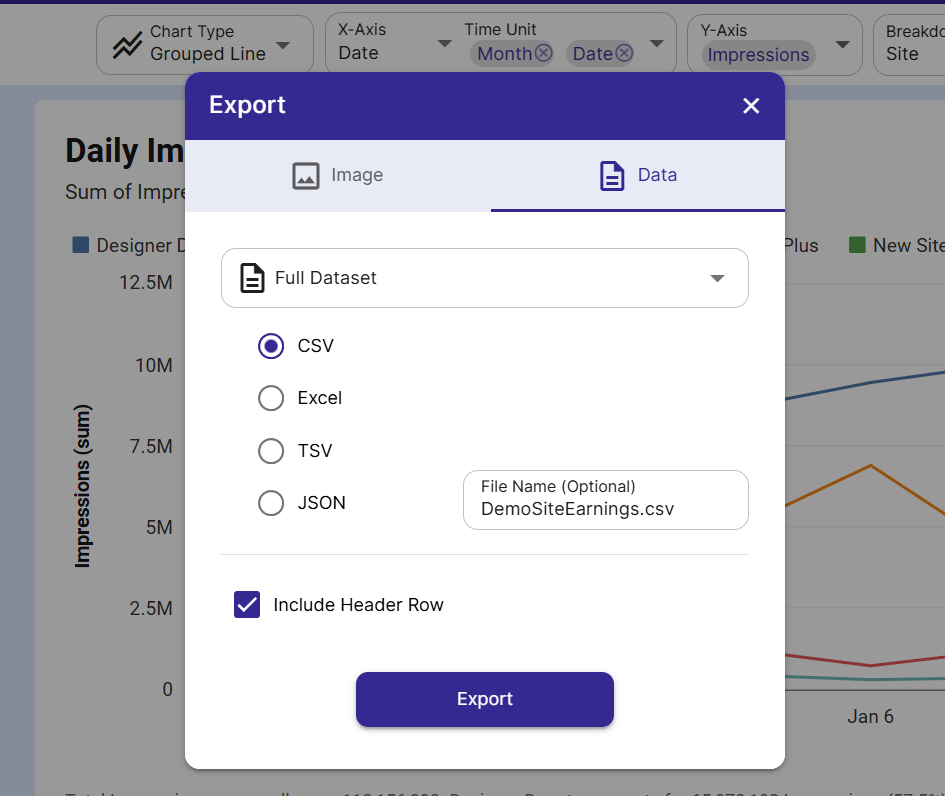
There are two main data export options: you can export the full dataset or just the plotted chart data.
Export Full Dataset
Select Full Dataset to download the data on the Full Dataset view of the Data tab. Any filters currently applied to your sheet will also be applied to the export.
Export Plotted Chart Data
Select Plotted Data to download the summarized data shown in the chart, as seen on the Plotted Data view of the Data tab. This is useful when you need to include the chart’s aggregated numbers in a report alongside an image of the chart.
File Name
Optionally enter a custom file name for your download. If left blank, a default name is used.
File Type
Choose from 4 file types for your data download:
| Format | Description | Best For |
|---|---|---|
| csv | Comma-separated values | Importing into Excel, Google Sheets, or most data tools |
| xlsx | Microsoft Excel workbook | Sharing with Excel users, preserving formatting |
| tsv | Tab-separated values | Importing into tools that don’t handle commas in data well |
| json | JavaScript Object Notation | Developers and data engineers consuming data in code |
Choose csv or tsv if you plan to import this data into another spreadsheet program. JSON is best suited for developers building data pipelines or integrations.
Include Header Row
Check this box to include a header row in your download. Column header names are pulled from each column’s name as configured on the Data tab.
Common Export Scenarios
- Monthly report - Export plotted data as xlsx and attach it alongside a chart image in an email or presentation.
- Pipeline handoff - Export the full dataset as csv or json to feed into another data processing tool.
- Client deliverable - Export plotted data as csv for a clean, readable summary of just the charted values.
- Backup - Export the full dataset as xlsx to keep a local copy of your InstaCharts data.
Export Image
The other tab in the Export Dialog allows you to export chart images.