
Import from Google Sheets
Overview
To import Google Sheets data into InstaCharts, you must first share your sheet with InstaCharts, then sync the data over.
InstaCharts auto-detects column types and instantly builds a chart from your spreadsheet. Because the sheet stays connected, you can re-sync it whenever the source data changes, keeping your charts, dashboards, and embeds accurate. The same process works for Excel, CSV, and JSON files in Google Drive, as well as Google Docs. Free accounts process files up to 2MB and 500 rows per spreadsheet; paid plans raise these limits.
The rest of this guide walks through each step in detail with screenshots.
To sync a spreadsheet from Google Sheets, first make sure you are logged into your InstaCharts account. If you don’t have an account, sign up here.
Step 1: Prepare Your Google Sheet
Before you start, make sure your Google Sheet is ready for integration. Here are some key considerations:
- Data Organization: Ensure your data is well-structured in a table format.
- Column Headers: Use clear and descriptive headers for your columns. These will be used as labels in your charts.
- Data Types: Verify that your data is in the correct format (ex: numbers, dates, text). Incorrect data types can lead to unexpected results.
Step 2: Share Your Google Sheet
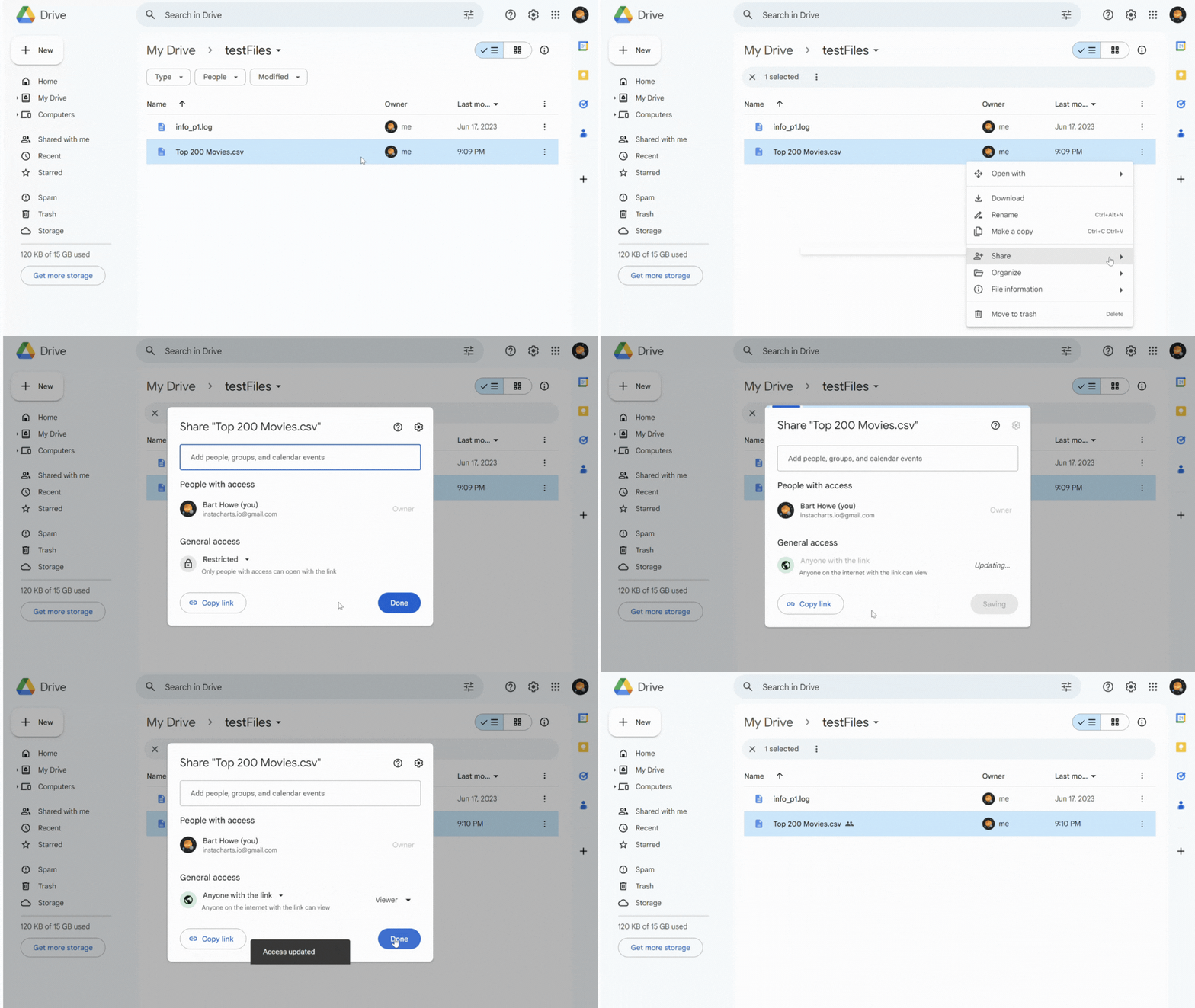
In Google Drive, find the file you’d like to connect. Right click on the file and click Share.
There are two ways to share this data with InstaCharts.
Share with anyone
Underneath General Access, change “Restricted” to “Anyone with the link”. This allows anyone with the link to view your file.
In the Role dropdown, InstaCharts only requires Viewer access.
Share with the InstaCharts account
If you’d rather not share your file publicly, you can share it with an InstaCharts email address.
In the “Add people” text box, paste in charts@instacharts.iam.gserviceaccount.com . Change the role
dropdown to “Viewer”
and press Send to update access.
InstaCharts should now be able to read your file.
Step 3: Connect the Google Sheet to InstaCharts
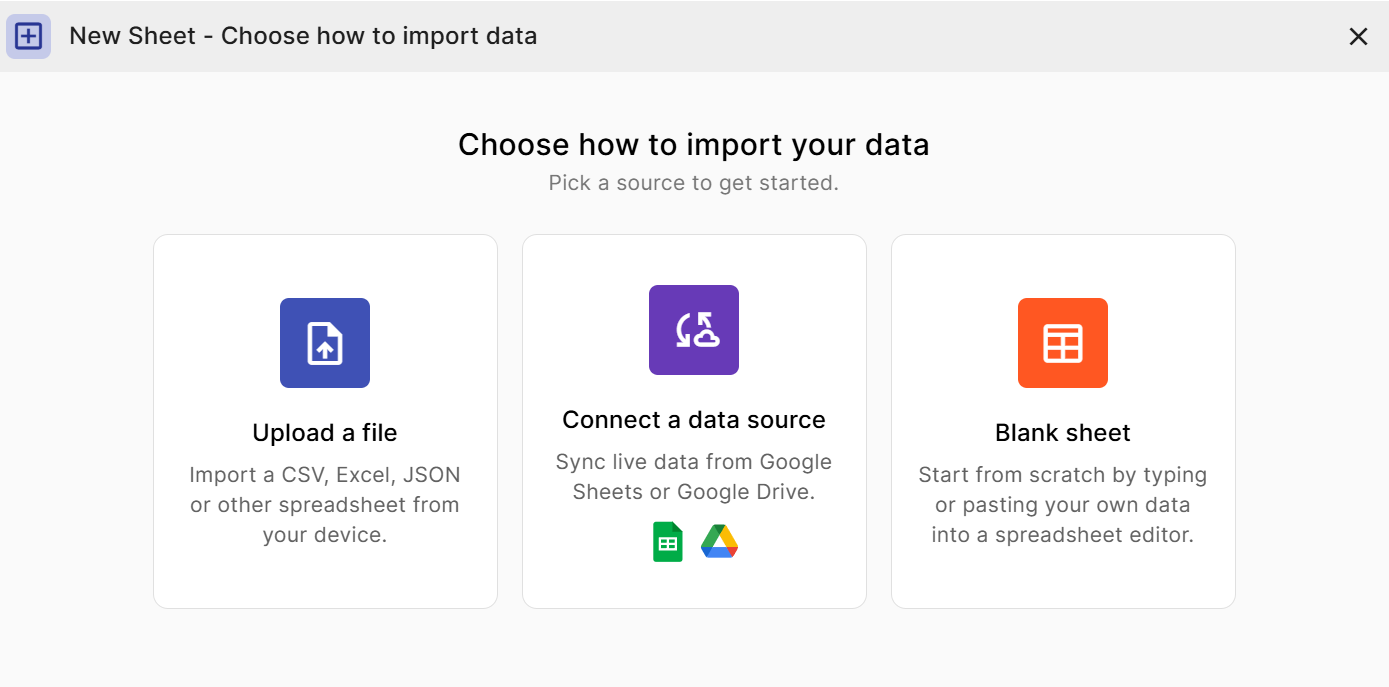
To import a spreadsheet from Google Sheets, click New -> New Sheet from your InstaCharts workspace.
From the New Sheet dialog, click the middle option “Connect to a data source”.
On the next screen, select Google Drive from the source dropdown. Then enter the copied link from step 2 into the Google Drive url text box.
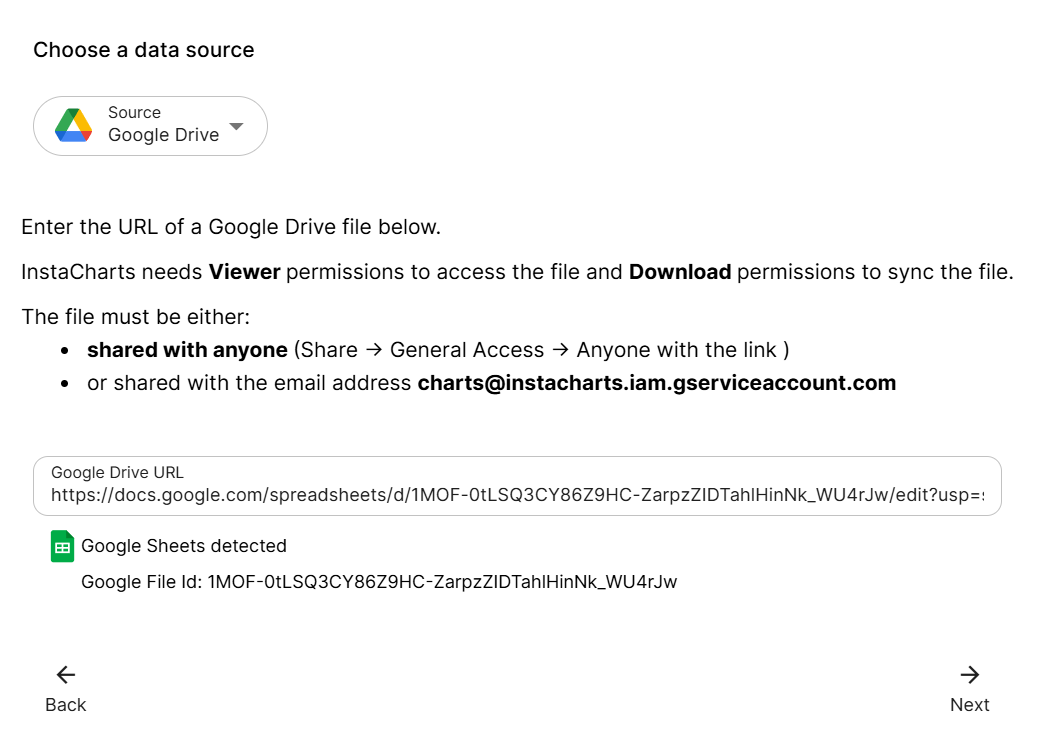
Click Next to view a preview of the Google Sheet.
Data Source Preview
If the file is successfully shared, a preview of it will show in the Preview window. If nothing is showing, recheck that your file was shared correctly with InstaCharts in step 2.
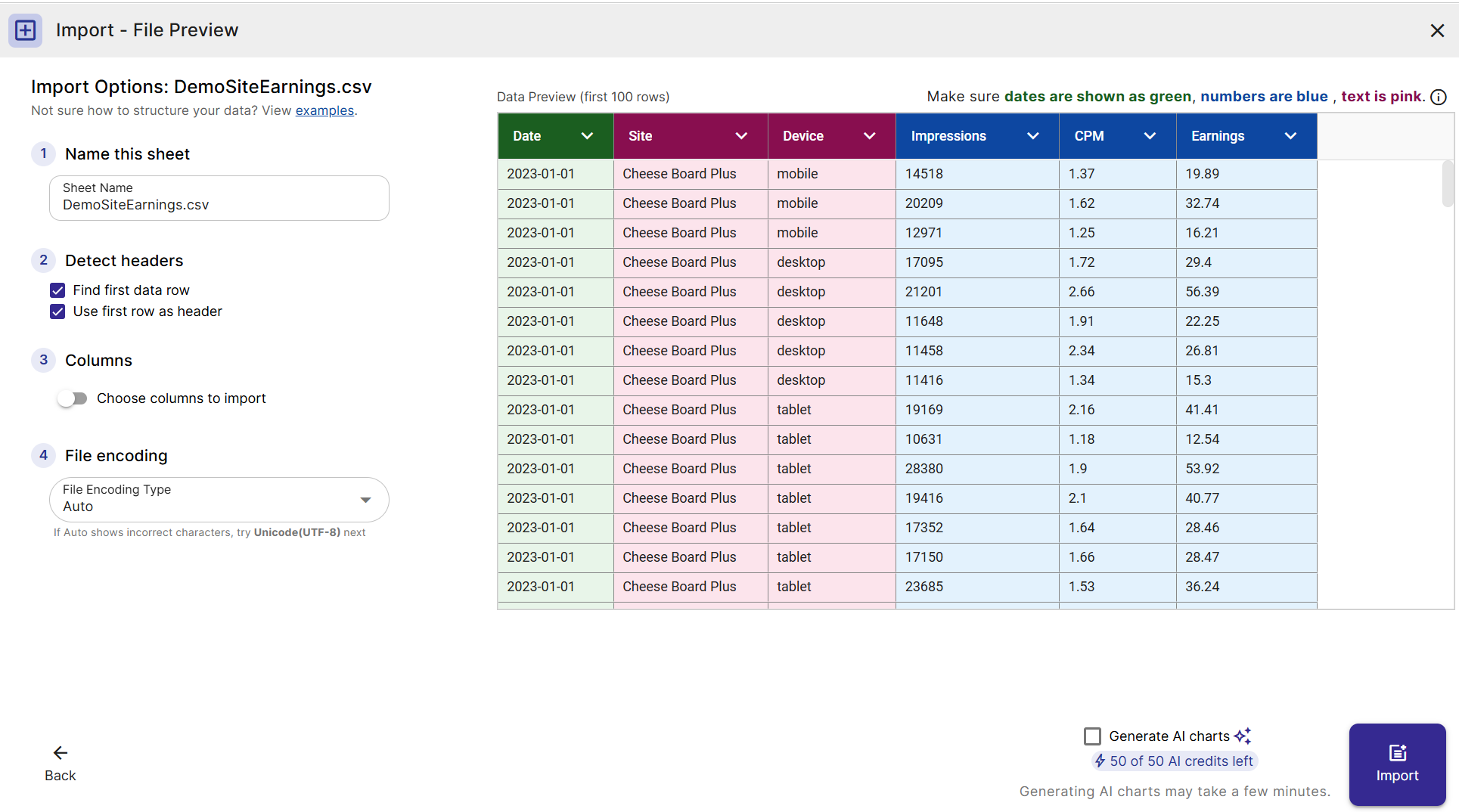
The preview shows the first 100 rows of your data with the column headers color coded by detected type: green for dates, blue for numbers, and pink for text. Confirm the columns you plan to chart are green or blue before importing.
Import Options
The same import options used for uploaded files apply to a connected Google Sheet. They sit on the left side of the preview window, and changing one reloads the preview so you can see the result before importing.
- 1. Name this sheet sets the name the new sheet gets in your workspace.
- 2. Detect headers controls whether the first row becomes the column names, and whether InstaCharts skips title rows and blank rows above the data to find the first real data row.
- 3. Columns lets you import a subset of the columns instead of all of them.
- 4. File encoding picks the character set used to read the file.
While Google Sheets and excel files in Google Drive already contain their encoding types, other Google Drive files may need a different encoding type selected. If the characters shown in the preview window don’t look correct, try changing the file’s encoding type.
Google Sheets with Multiple Tabs
A Google Sheet with more than one tab imports as a workbook, and each tab becomes its own sheet in InstaCharts. A Pages dropdown appears at the top of the import options with every tab selected by default, so you can deselect the tabs you don’t want.
Because several sheets can be created at once, the Name box becomes a Base Name that is applied to all of them. See Workbooks with multiple pages for the full walkthrough.
Generate AI Charts on Import
The Generate AI charts checkbox next to the Import button creates three AI recommended charts as soon as the sheet finishes syncing. It uses 1 AI credit and the chip below it shows how many credits your workspace has left for the month. See AI Chart Recommendations for more on how the recommendations are generated.
Imported Spreadsheet
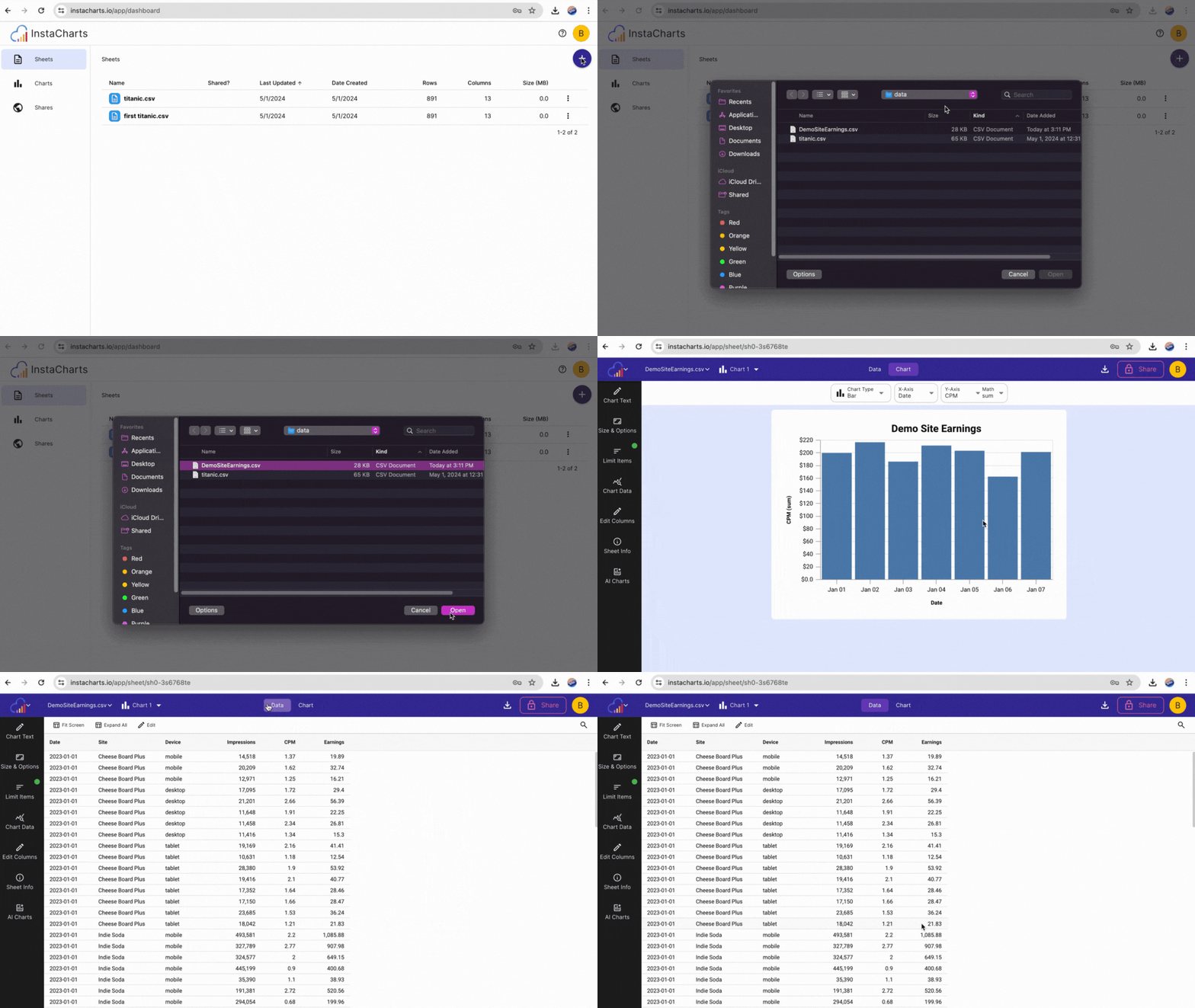
Once your sheet has been imported, it will automatically open to a chart created with your data.
Check Formatting
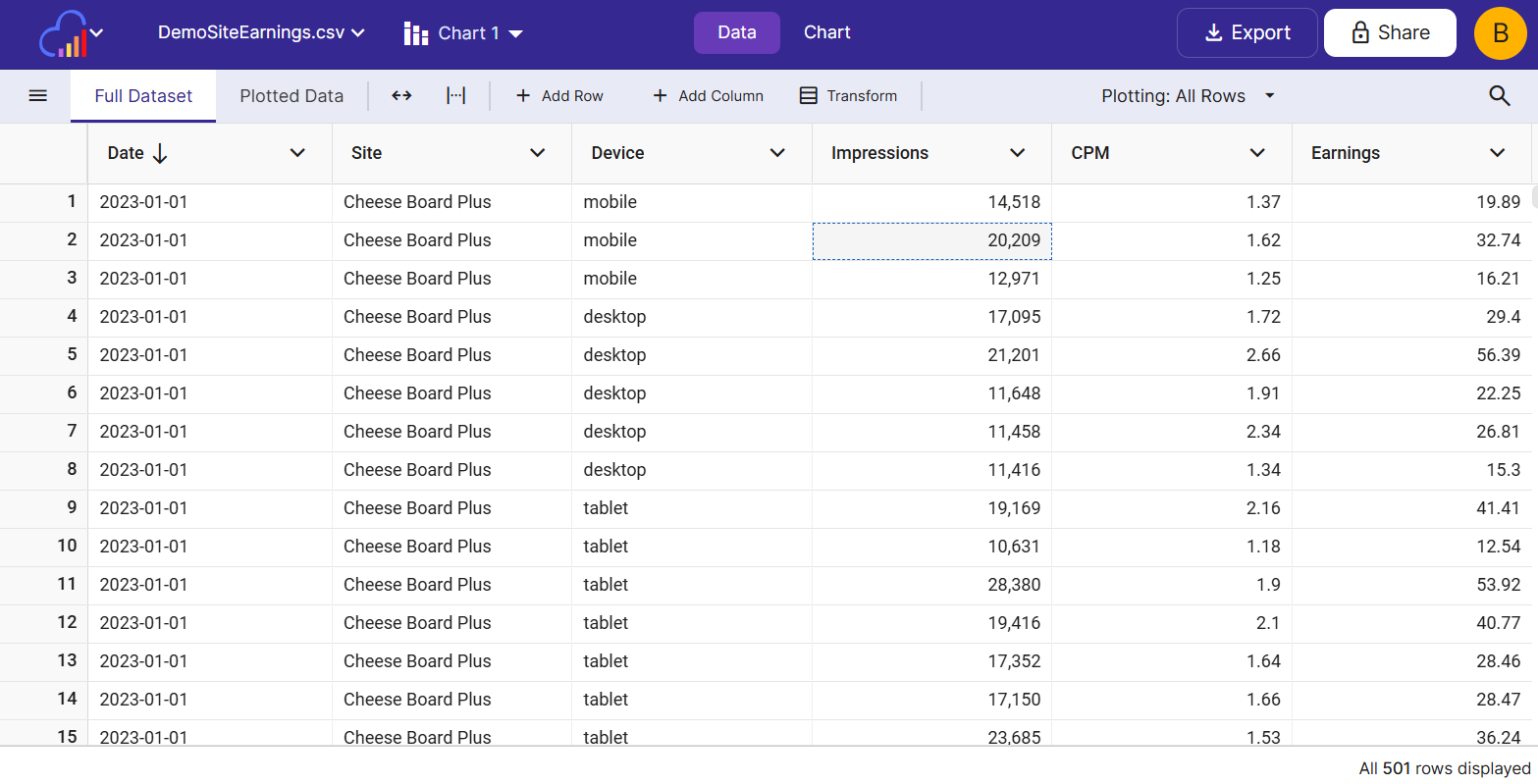
Click the Data tab to view your processed spreadsheet data. Column types are autodetected based on the data each contains. Column names are pulled from the header row of the spreadsheet.
To edit column names, click Edit Column from each column’s header menu on the data tab.
Keep a Google Drive File Up to Date
InstaCharts also syncs with the spreadsheet files you store in Google Drive, including Excel
(.xlsx), CSV (.csv), PSV (.psv), and log (.log) files, in addition to Google Sheets. That
means you can keep your charts current straight from the offline files you already work with,
without converting them into a Google Sheet first.
Before you start
- Connect your Google Drive file to InstaCharts by following Steps 1-3 above.
- Set up a sync schedule so InstaCharts checks the file for changes on a regular basis. See Re-sync settings to choose how often your data refreshes.
Upload a new version of your file
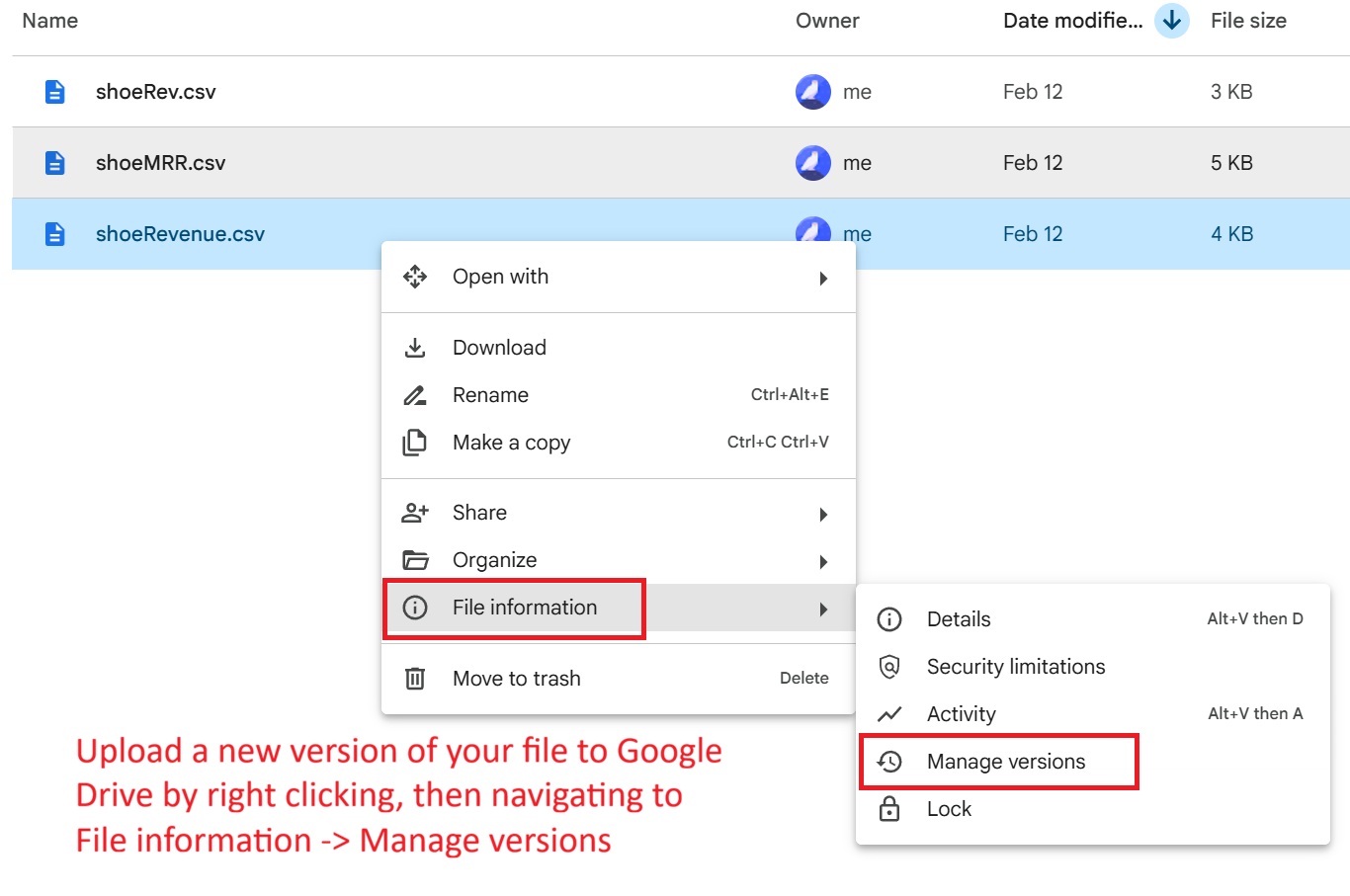
To update these files, upload a new version in Google Drive rather than editing them directly. Google Drive keeps the same file and the same shareable link, so your existing InstaCharts connection keeps working, with no reconnecting required.
To upload a new version of your file in Google Drive:
- Right-click the file in Google Drive.
- Select File information, then Manage versions.
- In the dialog that opens, upload the new version of your file.
Once the new version finishes uploading, your next scheduled sync will pick up the changes and update your sheet in InstaCharts automatically.
Google Drive’s version history keeps offline data flowing into InstaCharts this way, for numbers that live in an Excel workbook, a CSV export, a PSV, or a log file. A Google Sheet is not required to get up-to-date charts.
Troubleshooting
The preview window is empty or shows an error.
The most common cause is that the file is not shared correctly. Go back to Step 2 and confirm that either “Anyone with the link” is enabled, or that charts@instacharts.iam.gserviceaccount.com has been added as a Viewer.
Characters look garbled or incorrect. The file encoding may not match. Try selecting UTF-8 from the encoding dropdown in the preview window.
Only some rows are imported. Free accounts are limited to 500 rows per spreadsheet. Upgrade your plan or trim the source sheet to stay within the limit.
I updated my Google Sheet but the chart is not refreshing. InstaCharts does not automatically poll for changes. Use the Re-sync settings to configure how often your sheet is refreshed, or trigger a manual re-sync from your workspace.
My Google Doc or Drive file is not loading. Make sure you are selecting Google Drive as the source in the New Sheet dialog - this source supports Google Sheets, Google Docs, and uploaded spreadsheet files stored in Drive.
Frequently Asked Questions
Does InstaCharts support Google Docs? Yes. Select Google Drive as your source and paste the shareable link to your Google Doc. The same sharing rules apply.
Can I import Excel or CSV files stored in Google Drive? Yes. As long as the file is shared with InstaCharts (either publicly or via the service account email), you can import it the same way as a Google Sheet.
How often does the data refresh? Data does not refresh automatically by default. You can configure a sync schedule or trigger a manual re-sync from your workspace. See Re-sync settings for details.
Is my data secure? InstaCharts only requests Viewer access to your file. No write access is needed or requested. You can revoke access at any time by removing InstaCharts from the Share settings in Google Drive.
Next Steps
Now that your Google Sheets file is connected to InstaCharts, read on to discover the next steps:
How to Re-sync data with Google Sheets
How to Download Chart Images
How to Share a Chart via a link