
Workspace Members
Workspace Members is the collaboration feature built into each workspace. It lets you bring other people into your workspace with controlled access - they can view your charts, help build them, or help administer the workspace depending on the role you assign them. Members are managed per workspace, so the same person can have different roles in different workspaces.
To open the Members page, click Members in the left sidebar of your workspace.
Roles
Each member is assigned one of the following roles when they are invited. Roles control what a member can do inside the workspace.
| Role | What they can do |
|---|---|
| Owner | Full control - manage members, settings, and all content. The owner is the account that created the workspace and cannot be removed or reassigned. |
| Admin | Manage members and settings, create and edit all sheets and charts. |
| Editor | Create, edit, and delete sheets and charts. Cannot manage members or settings. |
| Viewer | View charts, sheets, and exports. Cannot make any changes. |
Billing and Seats
Each workspace has its own plan, and paid plans are billed per seat. The workspace owner, every Admin, and every Editor each use one seat at the workspace’s plan price. Viewers are free. A Pro workspace with an owner and two Editors uses three seats, billed at $19 user/mo.
Seats are added to the workspace’s subscription as soon as someone joins as an Admin or Editor, or is moved into one of those roles. A new seat is charged right away. When someone leaves or moves to Viewer, the seat comes off the subscription and the unused time is credited to your next invoice.
The Admin and Editor roles are available in workspaces that pay through a subscription.
If a workspace’s subscription ends, the workspace moves to the Free plan and its Admins and Editors become Viewers. Scheduled data syncs in that workspace pause until it is on a paid plan again.
Inviting a Member
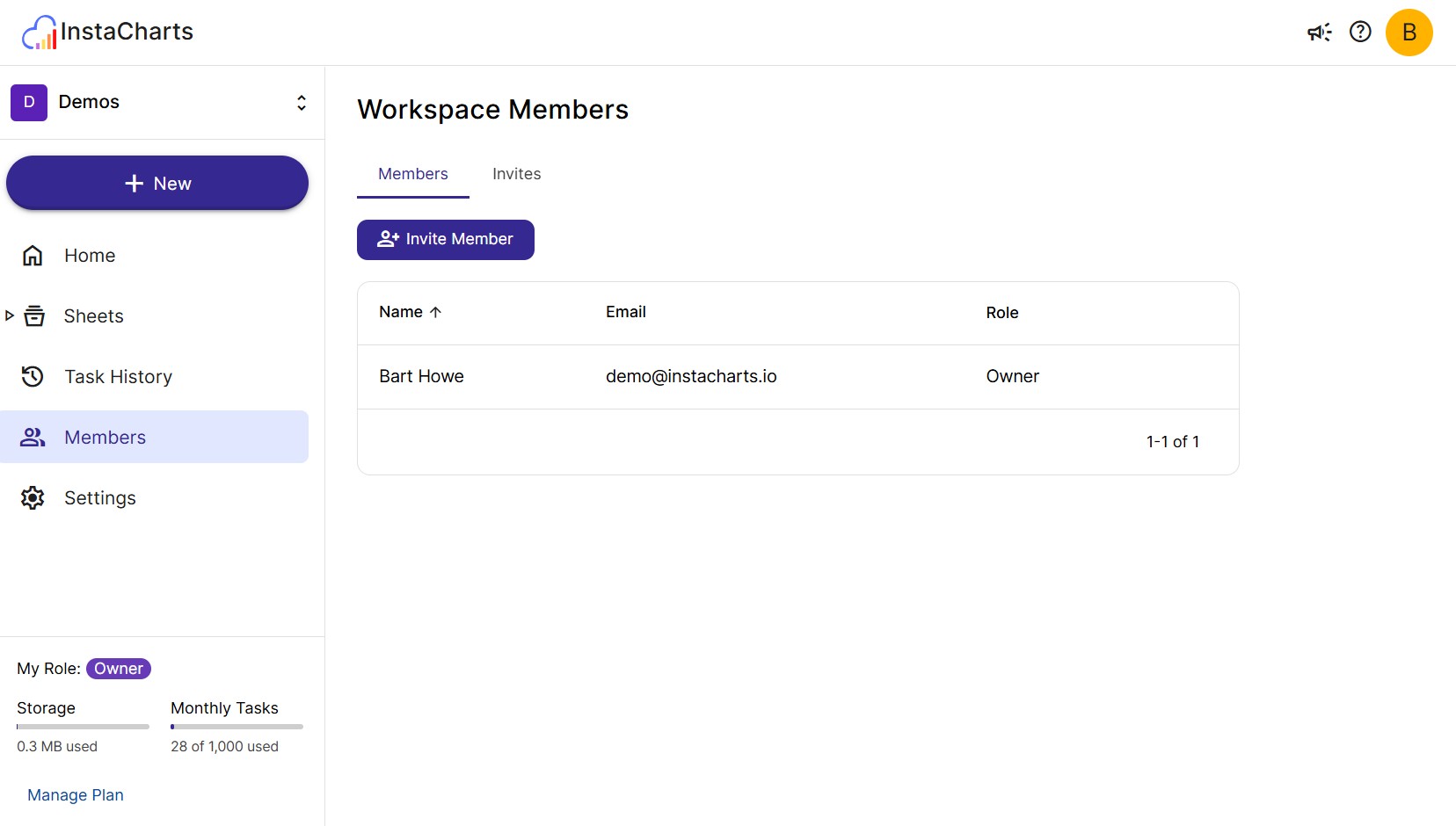
Click Invite Member to open the invite dialog. Fill in:
- Email address - the email of the person you want to invite
- Role - the role they will have when they join (defaults to Viewer). Admin and Editor show a billed seat on the workspace’s plan
- Message (optional) - a personal note included in the invitation email
Click Send Invite to send the invitation. The invitee will receive an email with a link to accept. The invite link is valid for 7 days.
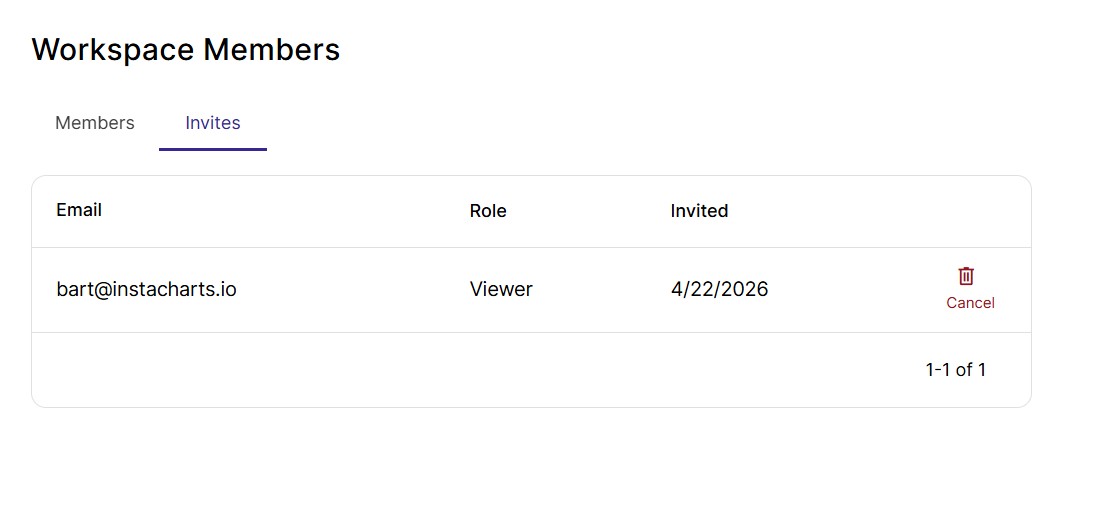
Pending invites appear under the Invites tab until they are accepted or canceled.
Accepting an Invite
When someone receives a workspace invite email, they click the link inside it. If they are not already logged in, they will see a preview of the invite and be prompted to log in or create a free account. Once logged in, accepting the invite adds them to the workspace immediately.
If the workspace’s subscription ended after an Admin or Editor invite was sent, the person joins as a Viewer.
Managing Existing Members
From the Members tab you can see all current members with their name, email, and role.
If you are an Owner or Admin, you can:
- Change a member’s role - open the role dropdown next to their name and select a new role
- Remove a member - open the row menu and select Remove. The member will immediately lose access to the workspace.
You cannot change the role of the workspace Owner, and you cannot remove yourself.
Cancelling a Pending Invite
Open the Invites tab to see all invites that have not yet been accepted. To cancel an invite, open the row menu next to it and select Cancel. The invite link in the email will no longer work.
Member Limits by Plan
Each paid workspace can have up to 5 Viewers. Viewers already in the workspace and pending Viewer invites both count toward the limit. Admins and Editors are billed seats, so any number of them can join a workspace with a subscription.
| Plan | Viewers | Admins and Editors |
|---|---|---|
| Free | Invites not available | Invites not available |
| Starter | Up to 5, free | $10 user/mo |
| Pro | Up to 5, free | $19 user/mo |
When the Viewer limit is reached, remove a Viewer or cancel a pending Viewer invite to make room. Moving an Admin or Editor to Viewer also needs an open Viewer slot. If you need more Viewers, contact support@instacharts.io.
Related
- Workspaces - what a workspace is and how to switch between them
- Workspace Settings - name, brand colors, shared assets and chart defaults
- Share Charts - share a single chart outside the workspace
- Share a Dashboard - share a full dashboard with others