
Embed Charts in a Website
Embedding lets you display a live InstaCharts chart directly inside your own website, blog, dashboard, or web app. The chart is loaded inside an iframe - no coding required on your end beyond pasting a snippet.
Embedded charts stay in sync with their source data. When you update the chart or sync new data in InstaCharts, the embedded version updates automatically.
To embed a chart, you must first share it. Make sure you are logged into your InstaCharts account - sign up here if you don’t have one yet.
Getting Your Embed Code
Open the Share & Templates dialog by clicking the Share button on the main toolbar (also accessible from the File menu).
From the left sidebar, select Share Chart. Set the share mode to Public, then look for the Embed in a webpage section.
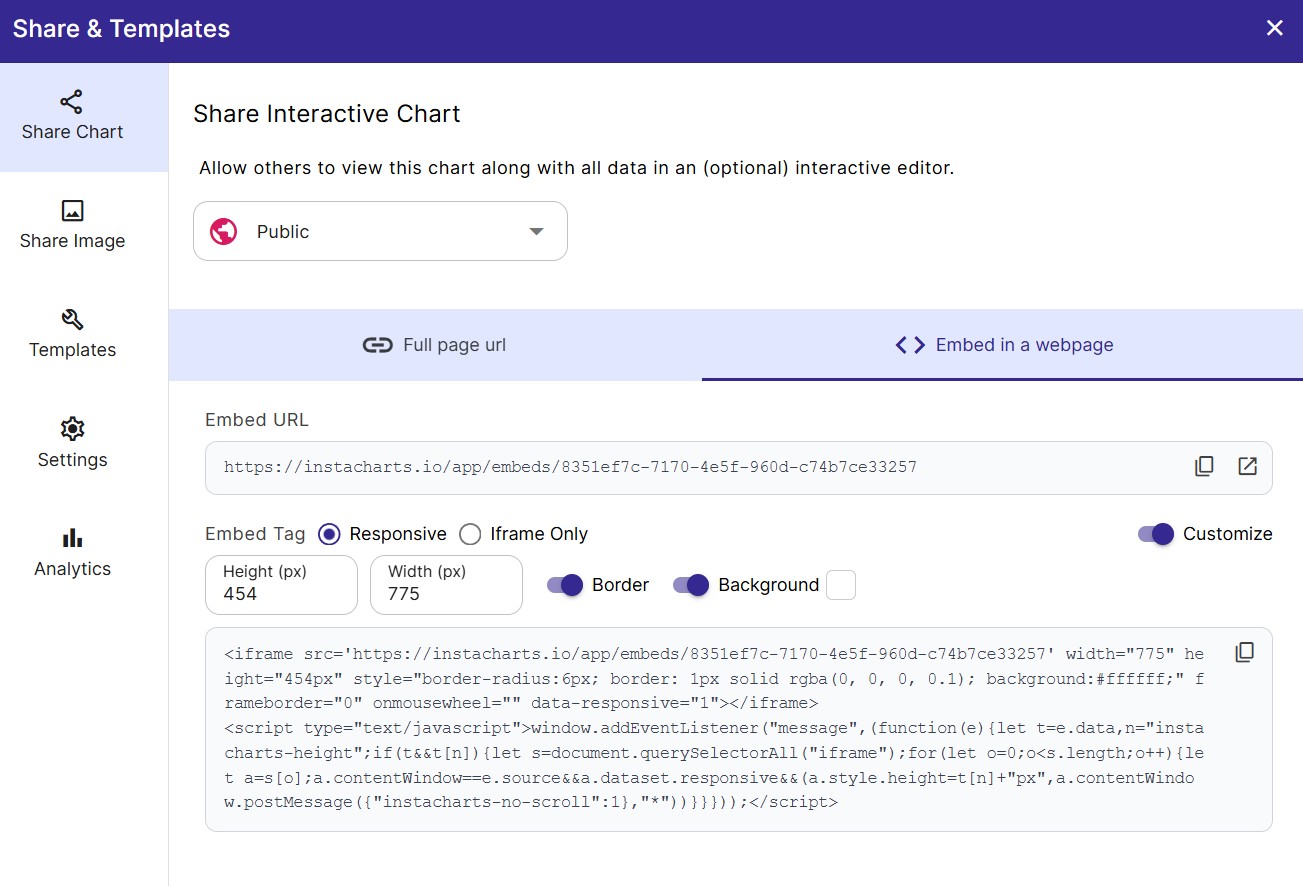
Two embed options are listed:
- Embed URL - a plain link you paste into tools that have their own embed block (ex: Notion, Wix)
- Embed Tag - a complete HTML
<iframe>tag you paste directly into HTML or a code block (ex: Webflow, WordPress, Ghost)
Copy whichever one your platform needs and paste it into your site.
What You Can Embed
Beyond the interactive chart, there are three things you can embed from the Share dialog:
| Item | Description | Share location |
|---|---|---|
| Interactive Chart | Live chart with hover tooltips and optional editor controls | Share Chart tab |
| Data Table | The full dataset or plotted data as a sortable table | Share Chart tab (enable Full Dataset or Plotted Data views) |
| Static Chart Image | An auto-updating PNG of the chart | Share Image tab |
To include a data table alongside the chart, open the Settings tab inside the Share dialog and check Full Dataset or Plotted Data under Included Views. When more than one view is enabled, a dropdown appears in the embed so viewers can switch between them.
Use the DataTable Colors dropdown next to the views to give the embedded data tables a Light or Dark color scheme, or pick Match Chart so the tables turn dark or light to match the chart’s background color. See DataTable Colors for details.
The Embed Toolbar
By default, embedded charts include a toolbar along the bottom edge. You can control this from the Settings tab inside the Share dialog using the Show Embed Toolbar toggle.
The embed toolbar contains:
- A view picker dropdown to switch between Chart, Full Dataset, and Plotted Data views (only shown if more than one view is enabled)
- An Export button so viewers can download the chart image or data
- A View Larger button that opens the full interactive chart in a new tab
Match the Toolbar to Your Chart
Turn on Match Toolbar to Chart, to color the toolbar with the chart’s background color. The toolbar text and buttons switch to light or dark colors so they stay readable on the chart background.
Sizing Your Embed
The embed tag InstaCharts generates includes a width and height. You can change these values directly to fit your layout.
The Chart Sizing setting in the Settings tab controls how the chart fits inside the frame:
- Responsive: The chart redraws itself to fill the frame, keeping text full size and adjusting the layout for small screens.
- Scale chart to fit screen: The chart is drawn at the size you built it and shrunk to fit, and the frame resizes to the height of the chart.
See Chart Sizing for more on each option.
Fixed size example:
<iframe src="https://instacharts.io/app/embeds/YOUR_CHART_ID" width="800" height="500" frameborder="0"></iframe>Responsive example - choose a width, the height will be updated to fit the chart:
<iframe src="https://instacharts.io/app/embeds/YOUR_CHART_ID" width="500" height="500" frameborder="0" style="max-width:1200px;"></iframe>Improve SEO for Embedded Charts
Search engines index the content inside an iframe as part of the page the iframe loads from, which for an embedded chart is instacharts.io. InstaCharts can add a description of the chart to your own page so that search engines and AI search tools understand what the chart shows and connect it to your content.
Every chart Embed Tag includes a title attribute filled in with the chart’s title and subtitle, which screen readers and search engines use to identify the frame. Shared image tags use the chart’s title and subtitle as the image’s alt text.
Two more options appear next to the Embed Tag type in the Embed in a webpage section of the Share dialog. Both are off by default, and you can turn on either one or both. Hover over a toggle to see a short description of what it adds.
| Option | What it adds to the Embed Tag |
|---|---|
| SEO data | A JSON-LD script that describes the chart as structured data |
| SEO caption | A visible caption below the chart with its title and a description of the data |
SEO Data
Turn on SEO data to add a JSON-LD script after the iframe. JSON-LD is a structured data format that Google, Bing, and other search engines read to understand a page. The script describes the chart as a schema.org Dataset with these properties:
| Property | Filled in from |
|---|---|
name | The chart title and subtitle |
description | The chart title and subtitle, the chart caption, and a sentence naming the plotted columns |
variableMeasured | The names of the x axis, y axis, and legend columns |
isBasedOn | The chart’s source URL, when one is set |
creditText | The chart’s source text, when one is set |
dateModified | The date the chart was last updated |
SEO data is only added when the chart has a title. Set the title, caption, and source in the Chart Text panel, and see Caption & Sources for adding a source.
SEO Caption
Turn on SEO caption to place a short caption below the chart. The Embed Tag wraps the iframe in a <figure> element and adds a <figcaption> with the chart’s title and subtitle, the chart caption, and a sentence naming the plotted columns. The caption text sits directly on your page, so search engines index it along with the rest of your content.
The caption is limited to the same width as the embed, and it uses your website’s font and text color. You can edit the caption text after pasting the Embed Tag into your site.
Embed Tag with SEO caption and SEO data:
<figure style="margin:0; max-width:600px;"><iframe src='https://instacharts.io/app/embeds/YOUR_CHART_ID' title="Quarterly Revenue: FY2026" width="600" height="400px" frameborder="0" data-responsive="1"></iframe><figcaption style="font-size:0.9em; margin-top:4px;">Quarterly Revenue: FY2026. Interactive chart of Revenue by Quarter grouped by Region.</figcaption></figure><script type="application/ld+json">{"@context":"https://schema.org","@type":"Dataset","name":"Quarterly Revenue: FY2026","description":"Quarterly Revenue: FY2026. Interactive chart of Revenue by Quarter grouped by Region.","variableMeasured":["Quarter","Revenue","Region"]}</script>Embed in a Website Builder
Below is how to embed in popular platforms as of April 2026:
Webflow
Add a Code Embed element to your page, then paste in the Embed Tag.
WordPress
In the block editor, add a Custom HTML block and paste in the Embed Tag.
Wix
Add an HTML Embed element. Choose Website address and paste the Embed URL, or choose Code and paste the Embed Tag.
Squarespace
Add an Embed Block, select Code Snippet, then paste in the Embed Tag.
Bubble
Drag an HTML Element onto your page, then paste the Embed Tag into the HTML field under Appearance.
Ghost
Add a Raw HTML card to your post or page and paste in the Embed Tag.
Notion
Add an Embed block (type /embed) and paste in the Embed URL.
Shopify
Add a Custom Liquid section and paste the Embed Tag into the Liquid code area.
Medium and Substack
Neither platform supports third-party iFrame embeds by design. Instead, export your chart as a PNG or SVG and upload the image directly to your article.
Embedding a Static Chart Image
If you only need a chart image that auto-updates - without any interactive controls - use a shared image instead.
From the Share & Templates dialog, select Share Image from the left sidebar. Enable sharing and copy the embed tag or image URL.
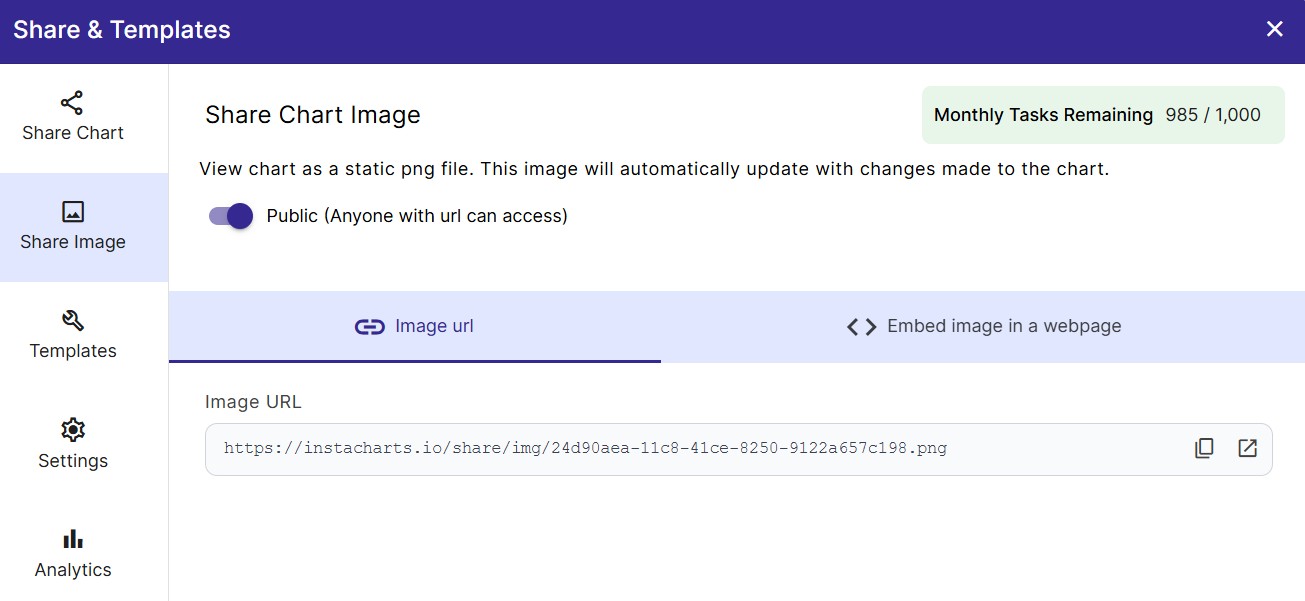
Shared images are PNG format and work anywhere a standard <img> tag or image URL is accepted, including email newsletters and platforms that block iframes.
Track Embed Views
Once a chart is embedded, the Analytics tab of the Share dialog reports how many times the embed has loaded, broken out from views of the full page share link. It also lists the top pages embedding the chart, which is how you find out where a chart has spread to. Analytics is a paid feature; see Share Analytics for the full breakdown.
Restrict Embedding to Specific Domains
By default, your embedded chart can be loaded on any website. If you want to prevent it from being copied and embedded elsewhere, use Domain Whitelisting under the Settings tab of the Share dialog (paid feature).
Enter each domain where the chart is allowed to display. You must use the exact domain or subdomain - wildcards are not supported.
| Input | Allows embedding on |
|---|---|
example.com | https://example.com/any-page |
blog.example.com | https://blog.example.com/any-page |
If someone tries to embed a whitelisted chart on a domain not in the list, the iframe will be blank. A whitelist with no domains added blocks the embed on every site, so add at least one domain after turning whitelisting on.
The Allow Top Level Loading toggle appears next to Whitelist Domains and is on by default. Turn it off to make the chart viewable only as an embed on your whitelisted domains. With it off, the full page interactive chart link and the full page template link stop loading, the Full page url tab is hidden in the Share dialog, and the View Larger button is removed from the embed toolbar.
See Share Charts for full details on domain whitelisting.
Troubleshooting
The iframe is blank on my website. The most common cause is that the chart is not set to Public. Open the Share dialog and confirm the share mode is Public, not Private.
The chart shows but on the wrong domain. If you have domain whitelisting enabled, make sure the domain where the chart is embedded is in the whitelist exactly as it appears (no trailing slash, no path).
The chart looks too small or too large.
Edit the width and height attributes on the <iframe> tag directly. Use width="100%" for a fluid layout that fills its container.
The embed toolbar is not showing. In the Share dialog, open the Settings tab and make sure Show Embed Toolbar is toggled on.
The View Larger button is missing from the embed toolbar. Domain Whitelisting is on and Allow Top Level Loading is off, which turns off full page views of the chart. Turn Allow Top Level Loading back on in the Settings tab to bring the button back.
I need to embed on Medium or Substack. Those platforms do not support iframes. Export the chart as a PNG and upload the image file instead.