
AI Chart Recommendations
InstaCharts can analyze the columns in your sheet and recommend charts to build from your data. There are two ways to get a recommendation, both from the same side panel:
- Recommended Charts - free, rule-based suggestions that show the exact X-axis, Y-axis, and breakdown columns used for each chart
- AI Recommendations - uses an AI credit to analyze your data and suggest a chart type along with a title, subtitle, and caption tailored to what your data shows
This page covers AI Recommendations. For the free, rule-based suggestions, look for Recommended Charts in the same panel.
Generating Charts While Importing
You can also have AI charts built for you at import time, without opening the panel at all. The import preview window has a Generate AI charts checkbox next to the Import button. Leave it checked and InstaCharts analyzes the new sheet as soon as the upload finishes, creates three charts from the recommendations, and opens the first one.
This uses 1 AI credit, the same as generating from the panel, and the chip under the checkbox shows how many credits your workspace has left. Generation can take a few minutes. A progress window appears while it runs, with an Open sheet button so you can start working on your data while the charts finish in the background.
The checkbox setting is remembered for your next import. See Import File for where it sits in the import flow.
Opening the Recommended Panel
From within any sheet, click Recommended in the left sidebar.
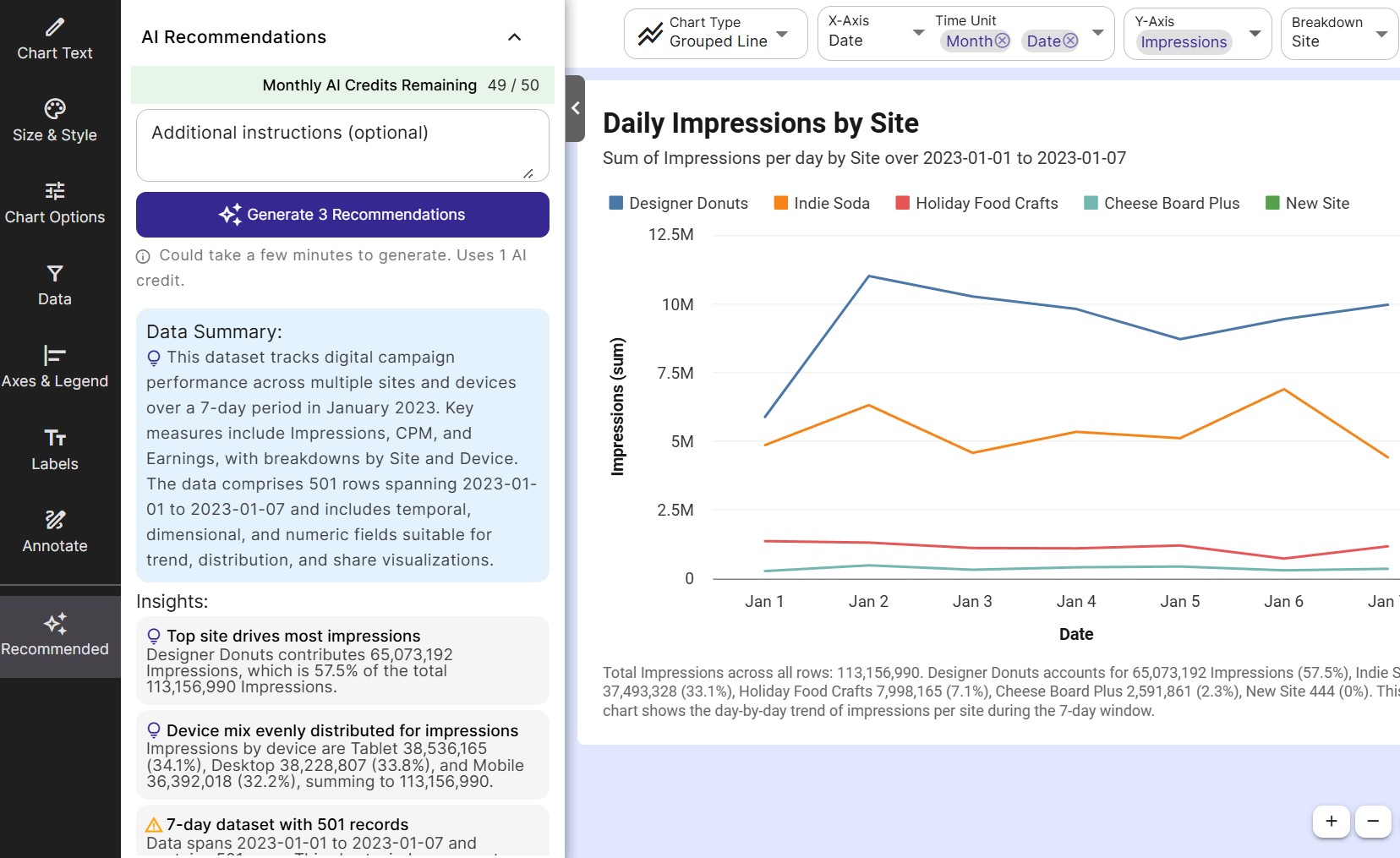
The AI Recommendations card opens inline in the side panel, alongside Recommended Charts, next to your sheet.
Additional Instructions
Before generating, you can give the AI extra context about what you are trying to communicate. This is optional but can meaningfully improve the relevance of the recommendations.
Examples of useful instructions:
- “Focus on trends over time”
- “I want to compare revenue across product categories”
- “Highlight the relationship between budget and gross profit”
- “Only show me stacked bar charts”
- “Track progress toward our $50,000 goal”
Goal chart recommendations
The AI can recommend a gauge chart when one total or average is the main story, and a grouped gauge chart when that number is split across a few categories. It uses a gauge whenever you ask it to track progress on a task, project, or goal.
For gauge recommendations, the AI also sets the gauge’s scale when your data makes it clear (ex: a Min of 1 and a Max of 5 for a 1 to 5 rating, or a Max of 100 for a percent). It only adds a target line when your instructions name a goal, target, or quota.
Type your instructions into the Additional instructions (optional) box, then click Generate 3 Recommendations.
Generating Recommendations
Click Generate 3 Recommendations to send your data and any additional instructions to the AI. This will consume 1 AI credit.
The AI examines your sheet’s column names and data types, along with a Data Summary and Insights (callouts about outliers or data quality issues it noticed) that appear above the recommendations, to determine which chart types are most appropriate for your data.
Recommendations are remembered per sheet, so reopening the panel shows your last set of recommendations along with when they were generated, instead of requiring a new generation every time.
Reading the Recommendations
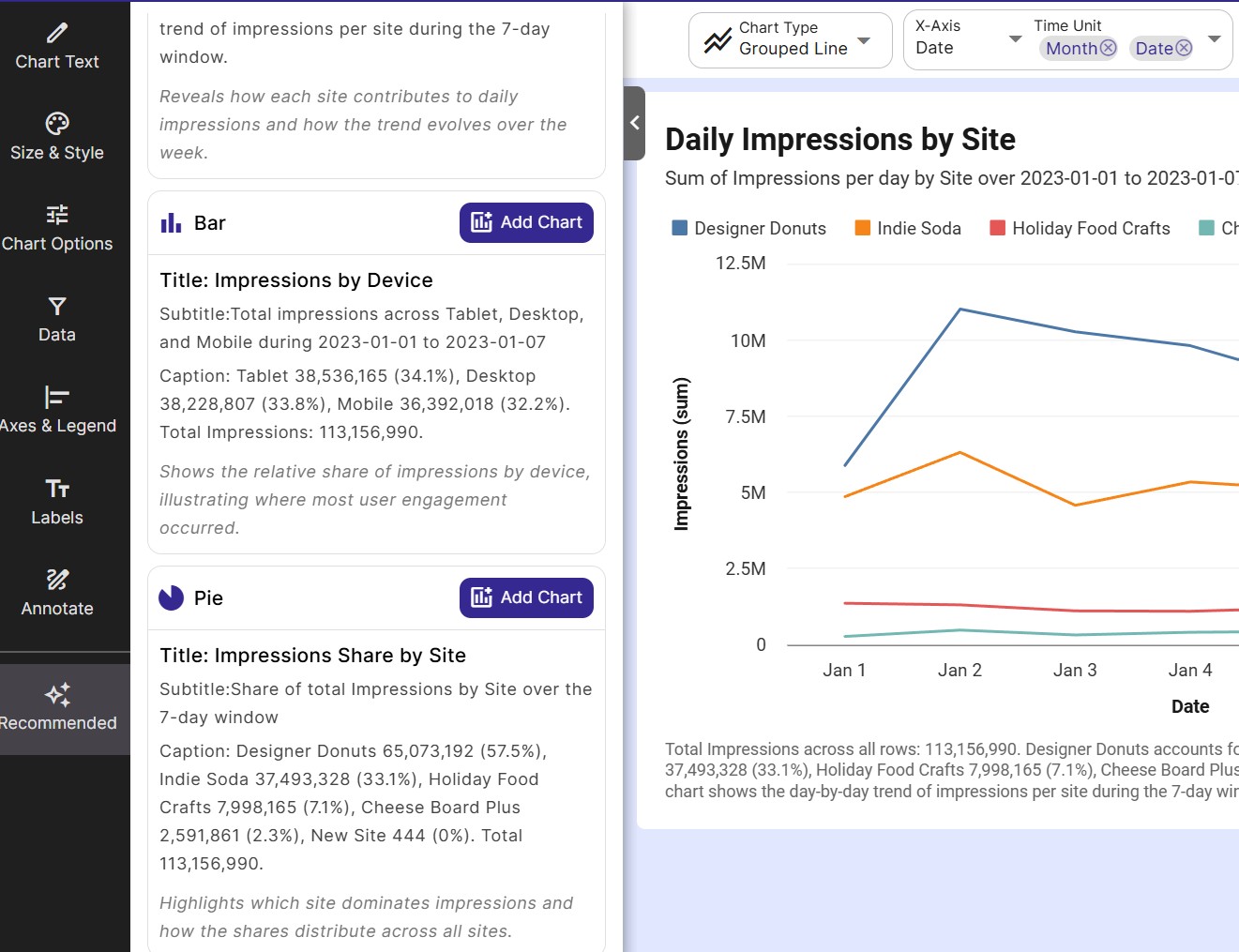
Once generation is complete, the panel displays 3 chart recommendations. Each recommendation includes:
- Title - a suggested chart title based on your data
- Subtitle - a short subtitle to complement the title
- Caption - a brief description of what the chart shows and why it is useful for your data
- Chart type - the recommended chart type (e.g., Line Chart, Bar Chart, Scatterplot)
Adding a Chart from a Recommendation
Click Add Chart on any recommendation card to instantly create a new chart in your sheet using the suggested settings.
The new chart will appear as an additional chart in your sheet, pre-configured with the recommended chart type, title, subtitle, and caption. You can then edit any of these settings as you would with any chart.
Related
- Chart Management - add, rename, and delete charts in a sheet
- Chart Text - edit the title, subtitle, and caption of a chart after it has been created
- Tasks - understand how AI credits and task quotas work