
Export Images
InstaCharts lets you download your charts as image files you can use in presentations, reports, websites, emails, and print media. Charts can be exported in six formats: PNG, JPG, SVG, WebP, PDF, and PowerPoint.
To export an image, open the Export dialog from the main toolbar. The Export dialog is also accessible through the File menu.
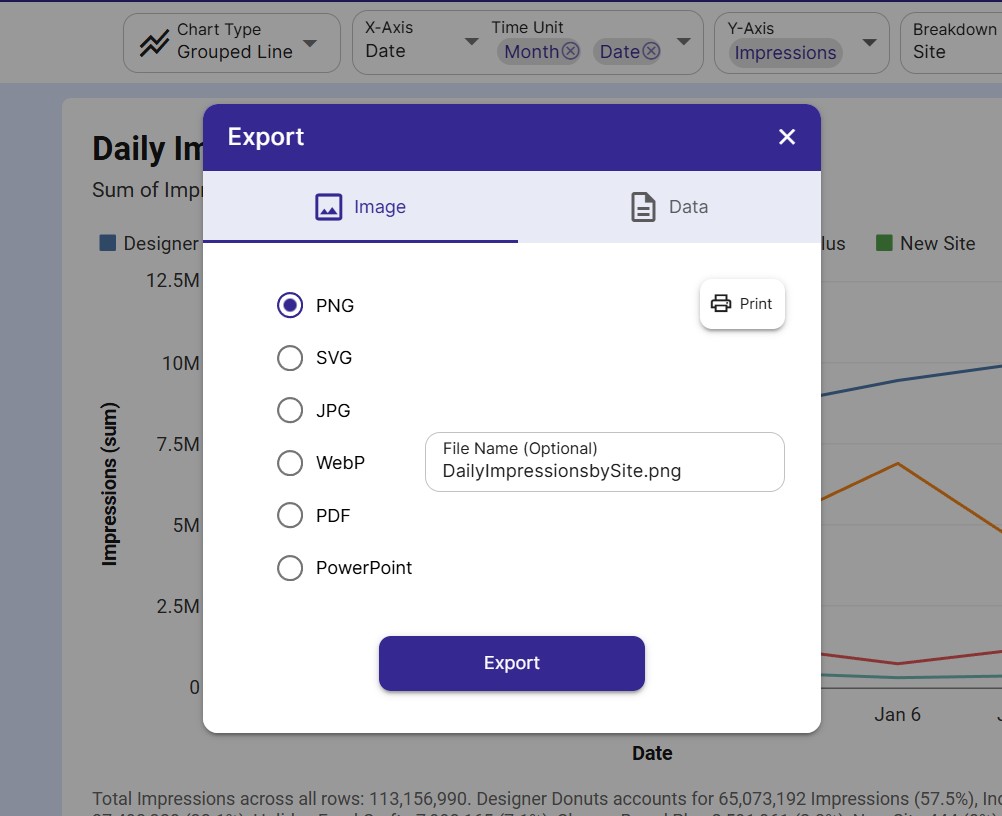
Export Dialog
To export an image, make sure the Image tab is selected in the Export dialog.
Export Image
Select an image type from the dropdown. Six formats are available:
| Format | Description | Best For |
|---|---|---|
| PNG | Raster image with transparent background support | Emails, slide decks, social media, web pages |
| JPG | Compressed raster image | Photos, web use where smaller file size matters |
| SVG | Scalable vector graphic - resolution independent | Print, large-format displays, web embedding, logo use |
| WebP | Modern compressed raster image | Web pages - smaller file size than PNG or JPG with good quality |
| Portable Document Format | Print-ready reports, sharing documents, archiving | |
| PowerPoint | Microsoft PowerPoint slide (.pptx) | Inserting charts directly into presentations |
Enter an optional file name for your download, then click Export. The file will be saved to your device.
Click the Print button in the Export Image dialog to send your chart directly to your browser’s print dialog. This lets you print the chart or save it as a PDF using your operating system’s built-in print-to-PDF feature.
Choosing the Right Format
Choose PNG when:
- You are attaching the chart to an email or Slack message
- You are inserting the chart into Google Slides or Keynote
- You need a transparent background
Choose JPG when:
- File size matters and transparency is not needed
- You are uploading to a platform that does not support PNG or WebP
Choose SVG when:
- You need the chart to look sharp at any size (print, large screens, retina displays)
- You are embedding the chart on a website and want it to scale cleanly
- You are handing the file off to a designer
Choose WebP when:
- You are publishing the chart on a website and want the best balance of quality and file size
- The platform or browser you are targeting supports WebP (all modern browsers do)
Choose PDF when:
- You are building a print-ready report or document
- You need to archive or email a self-contained file that looks the same on any device
Choose PowerPoint when:
- You want to drop the chart straight into a PowerPoint presentation as an editable slide
Common Export Scenarios
- Slide presentation - Export as PowerPoint to insert a ready-made slide, or as PNG to paste into Google Slides or Keynote.
- Print report - Export as PDF or SVG for crisp, resolution-independent output at any print size.
- Email newsletter - Export as PNG or JPG and embed the image inline in your email.
- Website - Export as SVG or WebP for a sharp, lightweight chart image that loads fast on all devices.
- Client deliverable - Export as PDF for a polished, portable document the client can open anywhere.
Export Data
The other tab in the Export Dialog allows you to export data.