
Overview
A sheet holds all data from an uploaded spreadsheet file. It is also a container for any charts or shares created from the sheet.
Workspace
A complete list of your sheets can be viewed from your workspace.
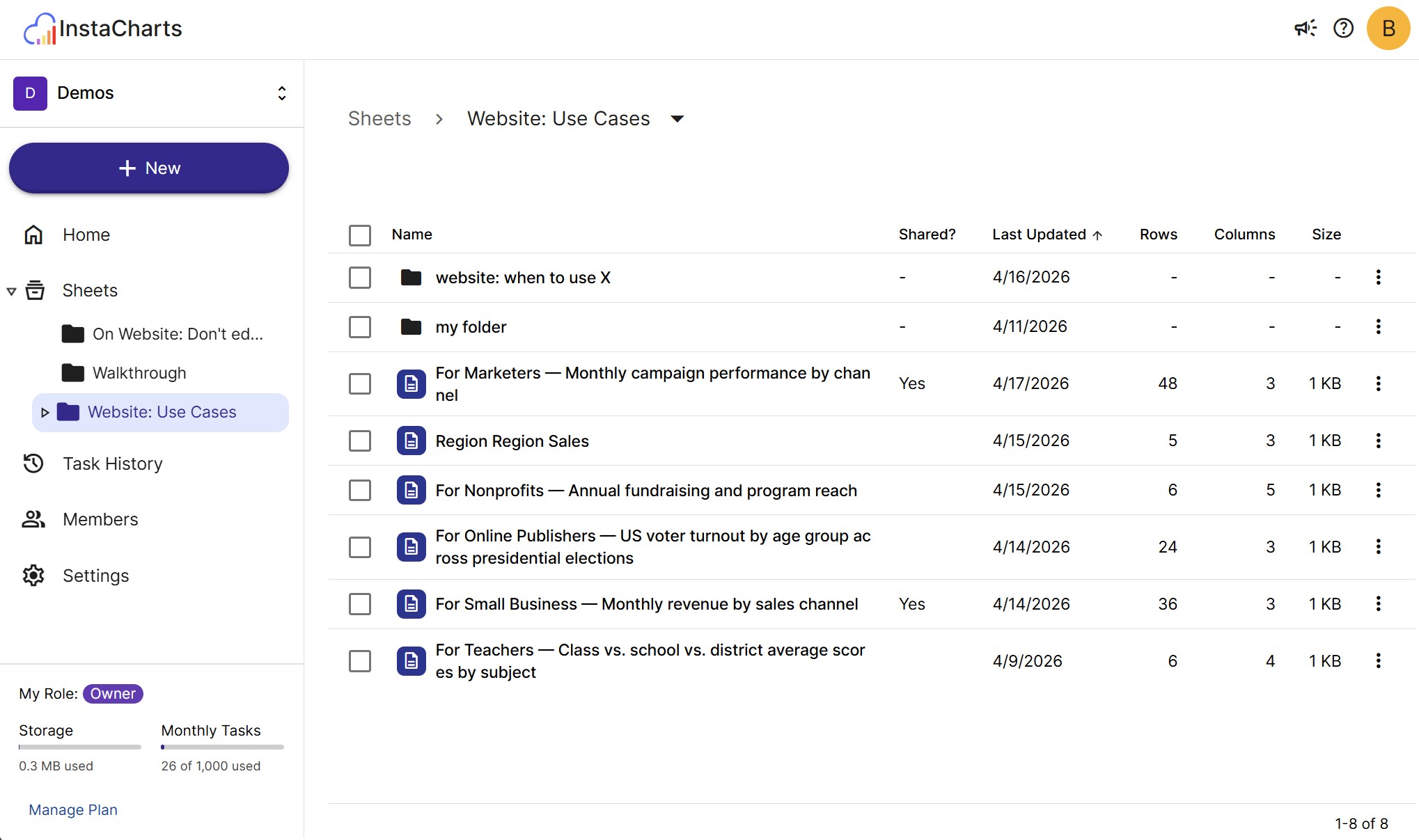
Double-click on a sheet to open it.
Sheets can be deleted and renamed from the workspace via the row menu.
Upload new sheet
There are two ways to upload a new sheet from your workspace:
- Click the New -> New Sheet button in the upper left corner
- Drag and drop one or more spreadsheet files from your local file system to the workspace
The New Sheet dialog gives you several sources to choose from: upload a file from your device, import a file from a link, connect a Google Sheets or Google Drive data source, start from a blank sheet, or start from a template. It also opens a preview with import options for naming the sheet, detecting the header row, choosing which columns to import, and setting the file encoding.
Before uploading, make sure your data is formatted for import: laid out in rows and columns with the column names in the first row.
Update an existing sheet
When the spreadsheet on your computer changes, update the sheet with the newer file instead of importing it as a second sheet. Right click the sheet in your workspace and select Update Data, or open the sheet and select Update Sheet Data from the sheet menu.
Charts
A sheet can contain multiple charts.
Each chart has its own set of filters applied to the sheet data. This makes it possible to highlight different portions of data, while sharing the same underlying data set.
Each chart has its own set of share controls, allowing you to share charts separately.
Shared Data
All charts contained in a sheet share the same underlying data set.
Editing the data
Any editing done on the underlying sheet data will be applied to all charts.
Deleting the sheet
A sheet can be deleted from the row menu on the Sheet table in your workspace, or it can be deleted through the sheet menu in the sheet itself.