Sync Settings
InstaCharts offers synchronization settings that control how and when your charts update from a connected data source. These settings let you connect charts to external data sources, automate updates, and keep data current for the whole team.
To sync a spreadsheet from an outside datasource, check out our Import from Google Sheets guide. To sync a CSV, Excel or JSON file from a public web address, see Import and Sync from a Link.
For a sheet that is not connected to a data source, use Update Sheet Data to refresh it from a file on your device.
Sync Settings Dialog
These options are only available on a sheet that is connected to an outside data source.
The Sync Settings dialog can be found on the sheet menu, under Sync Settings.
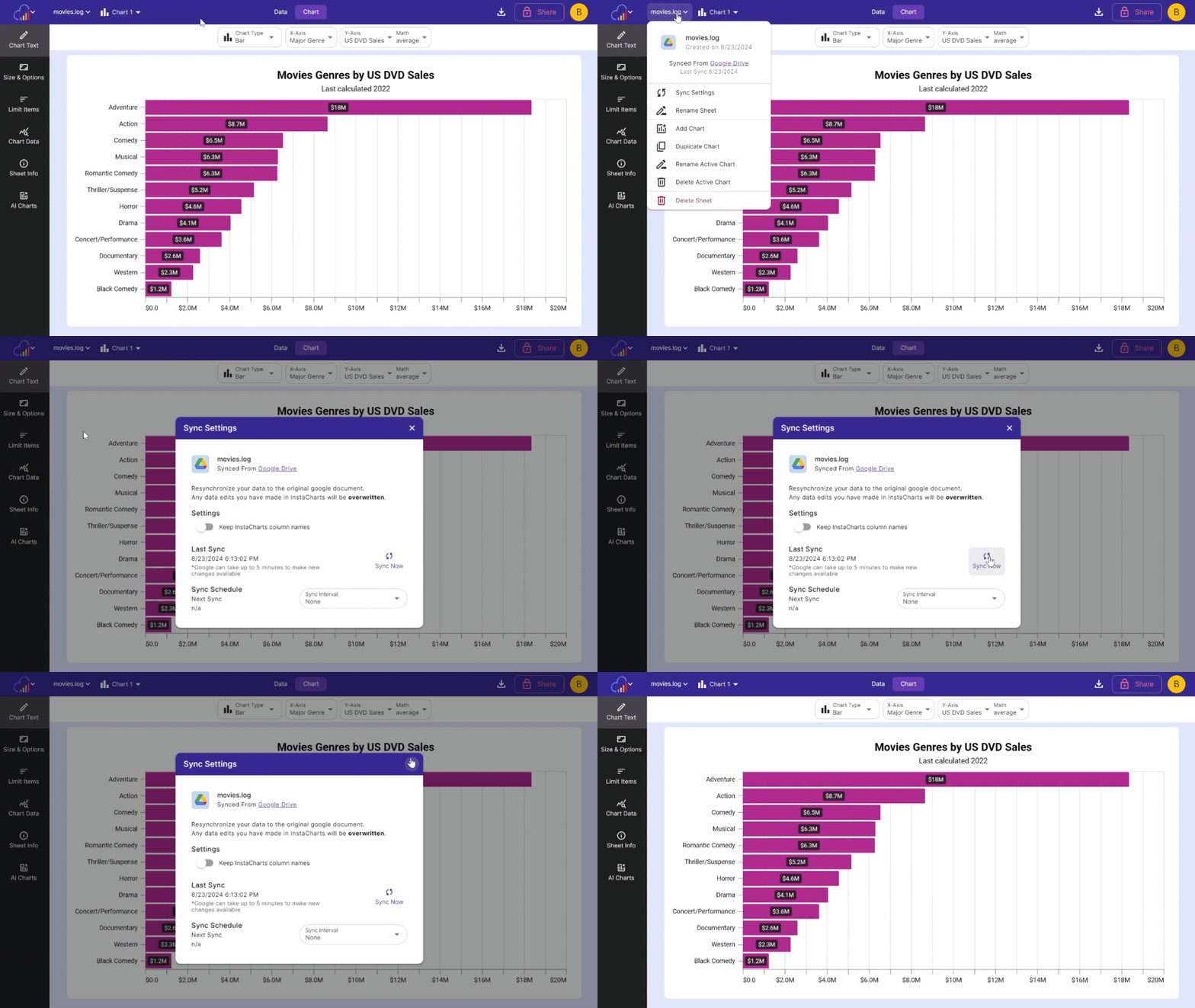
Use this dialog to resynchronize your data to the original document.
Settings
Toggle “Keep InstaCharts column names” to on if you don’t want the sync to overwrite column names that may have changed within InstaCharts.
Manual Sync
Click “Sync Now” to perform a manual sync.
It may take a few minutes for the new data from the data source to populate.
Users with a free InstaCharts account can perform 5 manual syncs a day. Manual Syncs are unlimited with a paid account.
Sync Schedule
Syncing is not done automatically. This is to allow for edits and data transformations within InstaCharts.
If you have a paid InstaCharts account, you can set up a sync schedule to check the original document for changes.
Intervals for Sync Schedule
| Interval Name | Timespan | Notes |
|---|---|---|
| None | This is the default setting | |
| Automatic | Automatically updates when the original document changes | Google files only. Google can take up to 5 minutes to send changes through |
| Hourly | Check original document once an hour | |
| Daily | Check original document once a day | checks 24 hours since the last sync |
| Weekly | Check original document once a week | checks 7 days since the last sync |
| Monthly | Check original document once a month | checks 1 month since the last sync |
A sheet imported from a web link can use the Hourly, Daily, Weekly and Monthly intervals. Each scheduled sync downloads the whole file from the link and counts as one task.