Grouped Gauge Chart
A grouped gauge chart, also called a multiple KPI gauge or radial progress chart, draws several gauges as rings inside one another. Each ring fills toward its maximum, so readers can compare how far along each category or measure is. InstaCharts supports up to 10 rings per chart.
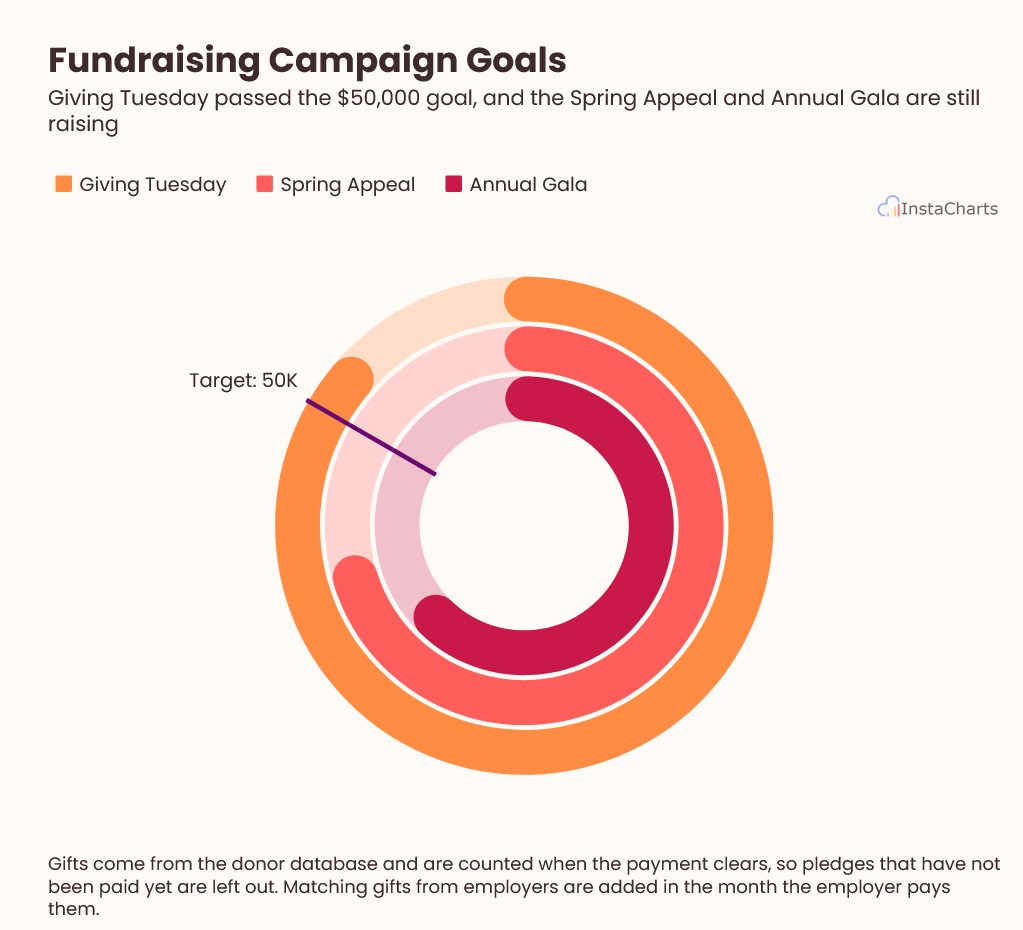
Grouped gauge charts work well for comparing progress across a few teams, regions, or campaigns (ex: donations per campaign toward a shared goal, average rating per support channel).
Creating a Grouped Gauge Chart
Choose Gauge from the Chart Type dropdown on the chart toolbar. A gauge switches to a grouped gauge when you pick a Breakdown column, add a second series, or choose Multi-Series at the top of the Chart Type dropdown. There are two ways to create the rings.
One ring per category
Pick a column in the Values dropdown and a column in the Breakdown dropdown. Each value in the Breakdown column becomes its own ring.
- Values Numerical values, aggregated for each ring (ex: sum of donations, average rating)
- Breakdown Categorical data with 10 or fewer values. Each value becomes one ring
- X-Axis Not used. The X-Axis dropdown is hidden for gauge charts
Rings made from a breakdown share one scale, so the Min, Max, and Target apply to every ring. Use the Items dropdown next to the Breakdown to choose which rings to show and to change the color of each ring.
One ring per series
Open the Values dropdown and click Add Series to plot more than one column. Each series becomes its own ring, which is useful when the measures are different columns (ex: revenue, new customers, and support tickets closed). The series menu also has a color button for each ring.
Series often have very different scales, so each ring gets its own Max and Target in the Chart Options panel and in the Style dropdown on the chart toolbar.
To go back to a single gauge, pick None in the Breakdown dropdown, remove the extra series, or choose Single Series in the Chart Type dropdown.
Grouped Gauge Settings
These settings are in the Chart Options panel under Options for Specific Chart Types. The Min, Max, Target and Ring Width settings are also in the Style dropdown next to the chart type on the chart toolbar.
- Min The lowest value on every ring. Leave it blank to start at 0
- Max and Target One shared Max and Target for a breakdown, or a Max and Target for each ring when you plot several series
- Ring Width How wide each ring is, as a percent of the gauge’s radius. With many rings, they get thinner than this so they all fit
- Default target color The target line uses the text color. Turn this off to choose your own target line color
Description
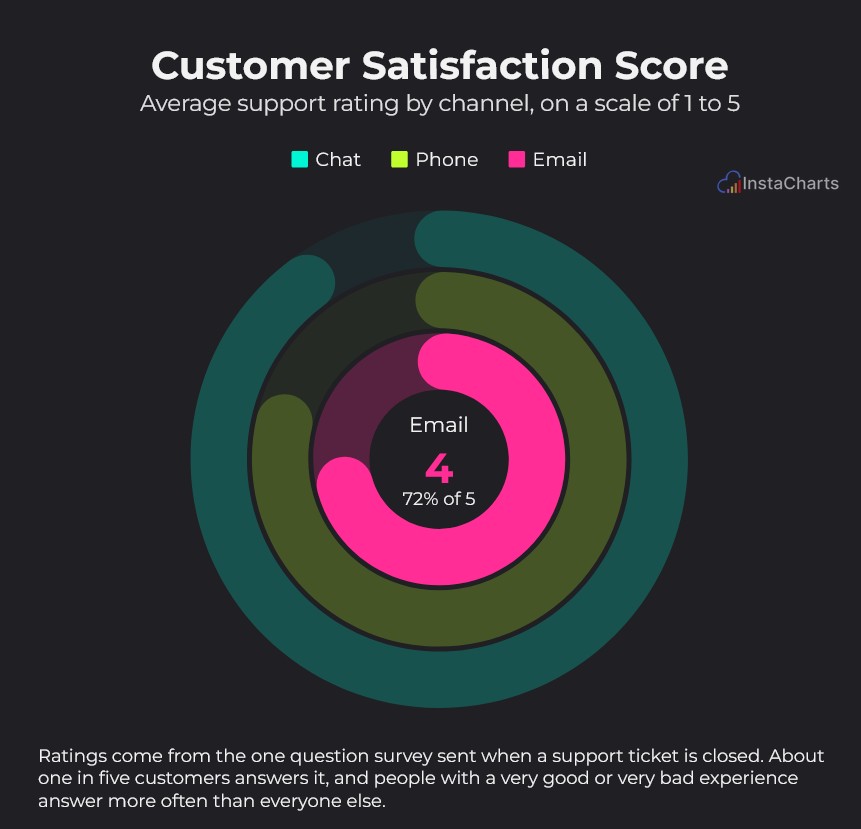
- Rings each ring fills toward its Max, starting with the first ring on the outside and working inward
- Tracks a light track behind each ring shows the part of the scale that is still empty
- Target lines a target is drawn as a line across each ring. A target shared by every ring is labeled outside the rim
- Center tooltip hover over a ring to see its name, value, percent of the Max, and target in the center of the chart
- Legend click a legend item to hide or show a ring. The remaining rings resize to fill the space. Turn on Data Labels to show each ring’s value in the legend
When to Use a Grouped Gauge Chart
- Progress by team or owner - track progress on a task or project for each team, owner, or region
- Goals for several campaigns - compare how close each campaign is to its fundraising or sales goal
- Scores by group - average ratings or scores for each product, location, or support channel
- Several KPIs on one chart - plot different measures as series, each with its own Max and Target
When to Avoid a Grouped Gauge Chart
- More than 6 categories - many rings get thin and hard to compare. Use a bar chart for longer lists
- Trends over time - use a grouped line chart to compare change over time
- One overall number - use a single gauge chart
Templates and AI
When you add a new sheet, the Choose a template gallery includes grouped gauge templates with sample data, such as Customer Satisfaction Score and Fundraising Campaign Goals.
AI Chart Recommendations and the dashboard AI prompt bar can suggest grouped gauge charts when progress or a score is split by a category. Grouped gauges added to a dashboard by AI use thinner rings so they fit inside a widget.
Related
- Gauge Chart - a single dial for one number
- Chart Options - every gauge setting
- Dashboard Widgets - add a grouped gauge to a dashboard