
Get Chart Image
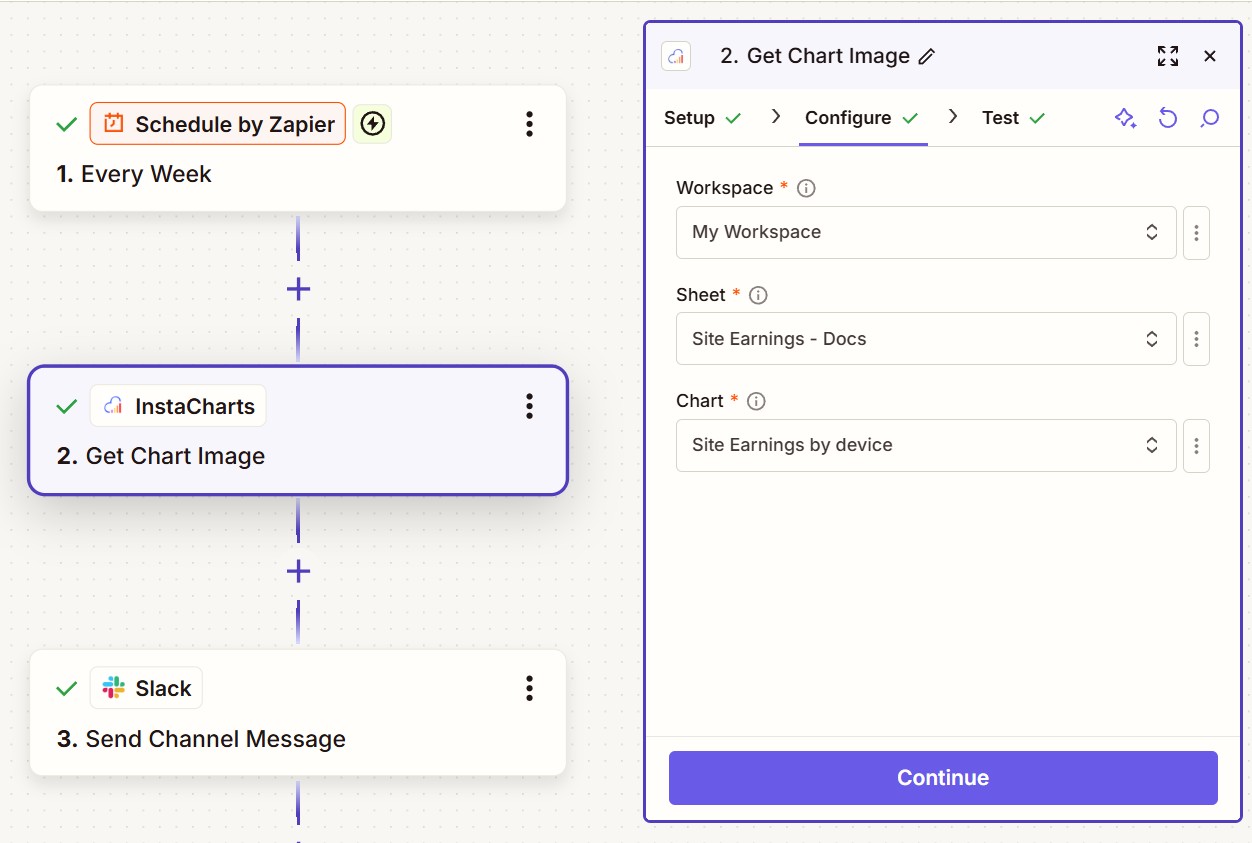
The Get Chart Image action returns an image of a chart you have already built in InstaCharts. You pick a workspace, sheet, and chart, and InstaCharts renders the chart’s current state and hands Zapier a hosted image URL to use in later steps.
Set up a Get Chart Image action
- Create a new Zap and choose your trigger. A common choice is Schedule by Zapier to grab a fresh image on a recurring basis, but any trigger works.
- Add InstaCharts as the action app and choose Get Chart Image as the action event.
- Connect your InstaCharts account if you haven’t already.
- On the Configure screen, pick the Workspace, then the Sheet the chart is built on, then the Chart you want an image of.
- Continue to the Test screen and press Test. A successful test returns an Image URL.
Using the image URL
A successful test returns a hosted Image URL.
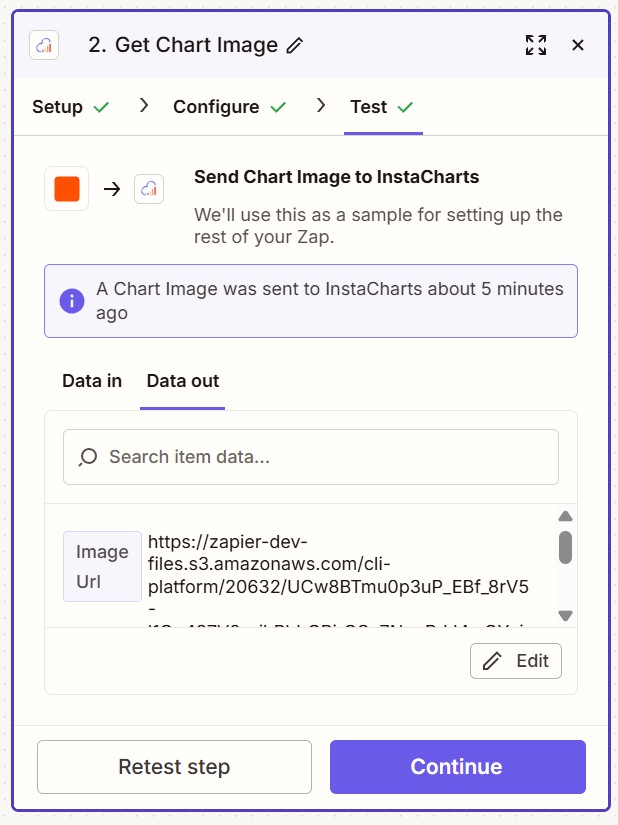
Because Zapier hosts the returned image, you can drop the Image URL into later steps of your Zap - attach it to an email, post it to Slack or Microsoft Teams, save it to Google Drive, or add it to a Notion page.
Always-current snapshots
Because the chart stays connected to its data in InstaCharts, scheduling this action gives you an up-to-date snapshot every time the Zap runs - great for weekly reports and dashboards delivered straight to your team.