
Dashboard Settings
Open Dashboard Settings from the dashboard menu to change the dashboard’s name, title bar, and appearance. Settings are organized into three tabs: General, Appearance, and Pages. For an introduction to dashboards, see the Dashboards Overview. The Pages tab is covered on its own page, see Dashboard Pages.
General
The General tab covers the dashboard’s identity:
- Dashboard name - the name shown in your workspace
- Description (optional) - a short note about what the dashboard contains
- Show title bar - toggle the title bar at the top of the dashboard on or off
- Dashboard title - the title displayed in the title bar (shown when the title bar is enabled)
Appearance
The Appearance tab controls how the dashboard looks.
Logo
Add your own logo to the dashboard header. This is a paid plan feature.
Click Select Logo to upload an image, then adjust:
- Side - place the logo on the left or right side of the header
- Background - toggle on a background color behind the logo and pick the color
- Logo Size and Padding - sliders to fit the logo to your header
Click Change Logo to swap it, or Remove Logo to take it off the header.
Themes
Pick a main theme (ex: Minimal, Executive, Studio). Each theme sets the header color, page background, and a matching chart color scheme.
Check Update widgets with new theme before saving and every widget on the dashboard updates to match the new theme, including chart color schemes and colors. This is the fastest way to restyle an entire dashboard in one click.
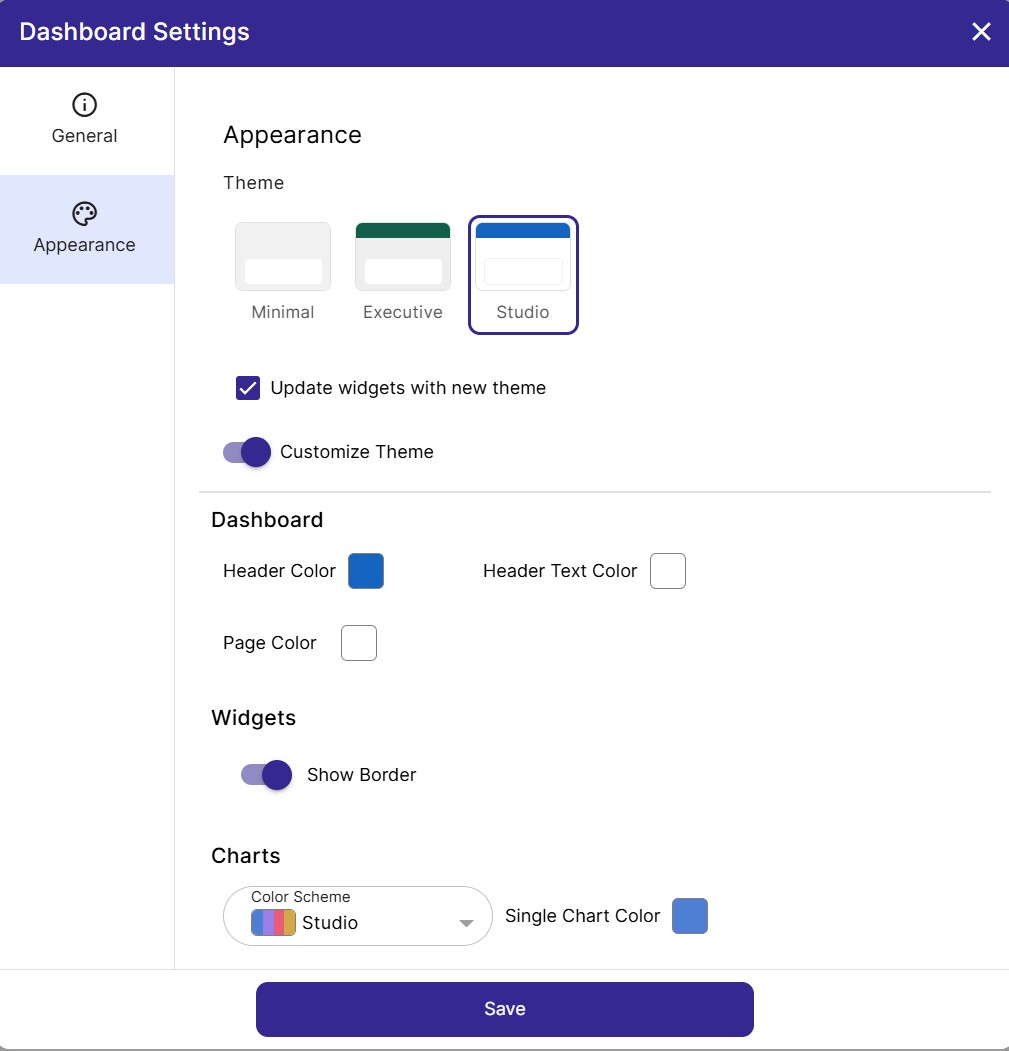
Customize Theme
To override individual parts of the theme, toggle on Customize Theme. The options are grouped into collapsible sections:
| Section | Options |
|---|---|
| Header | Header color, header size, title font, title font color, title font size |
| Page | Page color, show widget borders |
| Charts | Default chart color scheme, single chart color for chart widgets |
| Page Menu | Sidebar color, item padding, active page color, active page font color, page button font, font color, font size, and icon size |
The Page Menu section only appears when Dashboard Pages are turned on; it styles the page navigation sidebar to match the rest of the theme.
Click Save to apply your changes.
Related
- Dashboards Overview - what dashboards are and how to build them
- Dashboard Widgets - add and customize charts, tables and KPIs
- Dashboard Pages - the Pages tab in Dashboard Settings turns pages on and off
- Slicers - let viewers filter the widgets on a page
- Share a Dashboard - publish or share your dashboard
- Size and Style - the chart color schemes themes are built on