
Import and Sync Data from a Link
InstaCharts can import a data file straight from a web address. Paste the link to a CSV, Excel or JSON file, preview the data, and InstaCharts downloads the file and turns it into a new sheet with a chart. The sheet remembers the link it came from, so you can sync it again later to pull in the latest version of the file, either by hand or on an hourly, daily, weekly or monthly schedule.
Importing from a link works well for data that is published online and updated regularly (ex: open data portals, government statistics, CSV files in a GitHub repository, exports from a reporting tool). You skip the step of downloading the file to your computer and uploading it again each time the data changes.
To sign in and import from a link, you need a free InstaCharts account. Sign up here if you don’t have one yet.
Which Links Work
The link needs to point at the data file itself. When you open the link in a browser, it should download the file or show the raw data. Good examples are the Export or Download CSV link on an open data portal and the Raw link to a file on GitHub.
The link also needs to be:
- Public, so anyone on the internet can open it without logging in.
- Secure, starting with
https://. If you paste an address withouthttps://, InstaCharts adds it for you.
A link that opens a regular web page shows the error “This link opens a web page. Use a link that downloads a CSV, Excel or JSON file”. In that case, look on the page for a download or export button and copy the link from that button instead.
Supported file types
Files imported from a link are read the same way as uploaded files. InstaCharts works out the file type from the link or from the type the website sends with the file.
| Format | Extension(s) |
|---|---|
| Comma-separated values | .csv |
| Tab-separated values | .tsv |
| Pipe-separated values | .psv |
| Delimiter-separated text | .dsv, .txt, .log |
| Microsoft Excel | .xls, .xlsx, .xlsm, .xlsb |
| OpenDocument Spreadsheet | .ods, .fods |
| Apple Numbers | .numbers |
| JSON | .json, .jsonl |
File size limits
The largest file you can import from a link is the same as the largest file you can upload on your plan. The import screen shows your plan’s limit under the instructions (ex: Your plan imports files up to 2 MB). Row and column limits for your plan also apply, the same as an uploaded file.
Google Sheets and Google Drive links
If you paste a Google Sheets, Google Docs or Google Drive link, InstaCharts shows a message with a Connect a data source shortcut. Google files import best through the Google Drive data source, which reads files shared privately with InstaCharts and can update automatically when the Google file changes. Follow the Import from Google Sheets guide for those files.
Import a File from a Link
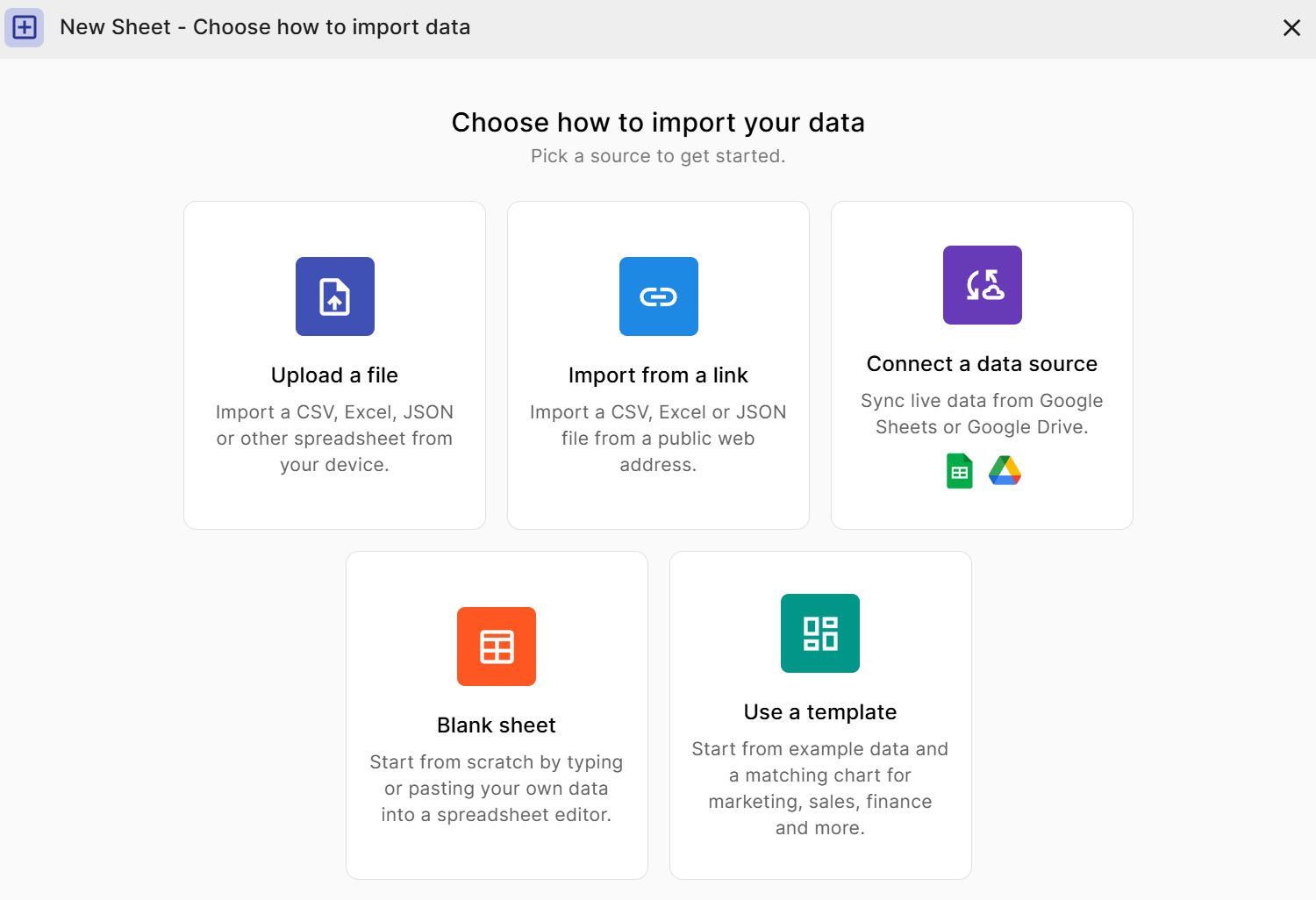
- From your workspace, click New -> New Sheet.
- Choose the Import from a link card.
- Paste the web address of your data file into the File URL box.
- Click Next. InstaCharts downloads the file and shows a preview of the first rows.
- Review the preview and adjust the import options if needed.
- Click Import to create the sheet.
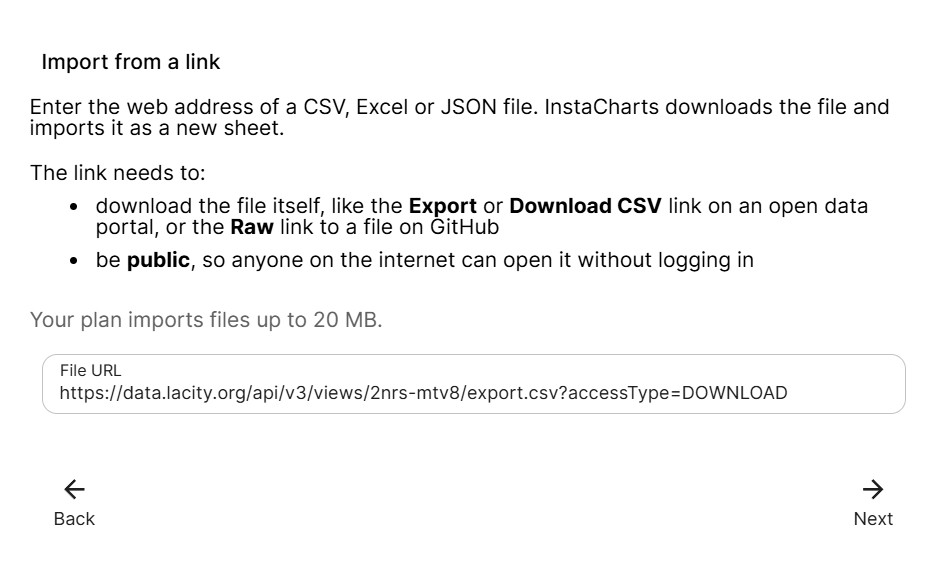
If InstaCharts can’t download the file, an error message explains what went wrong and the dialog returns to the link screen so you can fix the address.
Preview and import options
The preview works the same way as the preview for an uploaded file. Column headers are color coded by the detected column type, and the import options on the left side let you change:
- Name this sheet, the name the new sheet gets in your workspace.
- Detect headers, which controls whether the first row becomes the column names and whether InstaCharts skips title rows and blank rows above the data.
- Columns, to import some of the columns instead of all of them.
- File encoding, the character set used to read text files like CSVs.
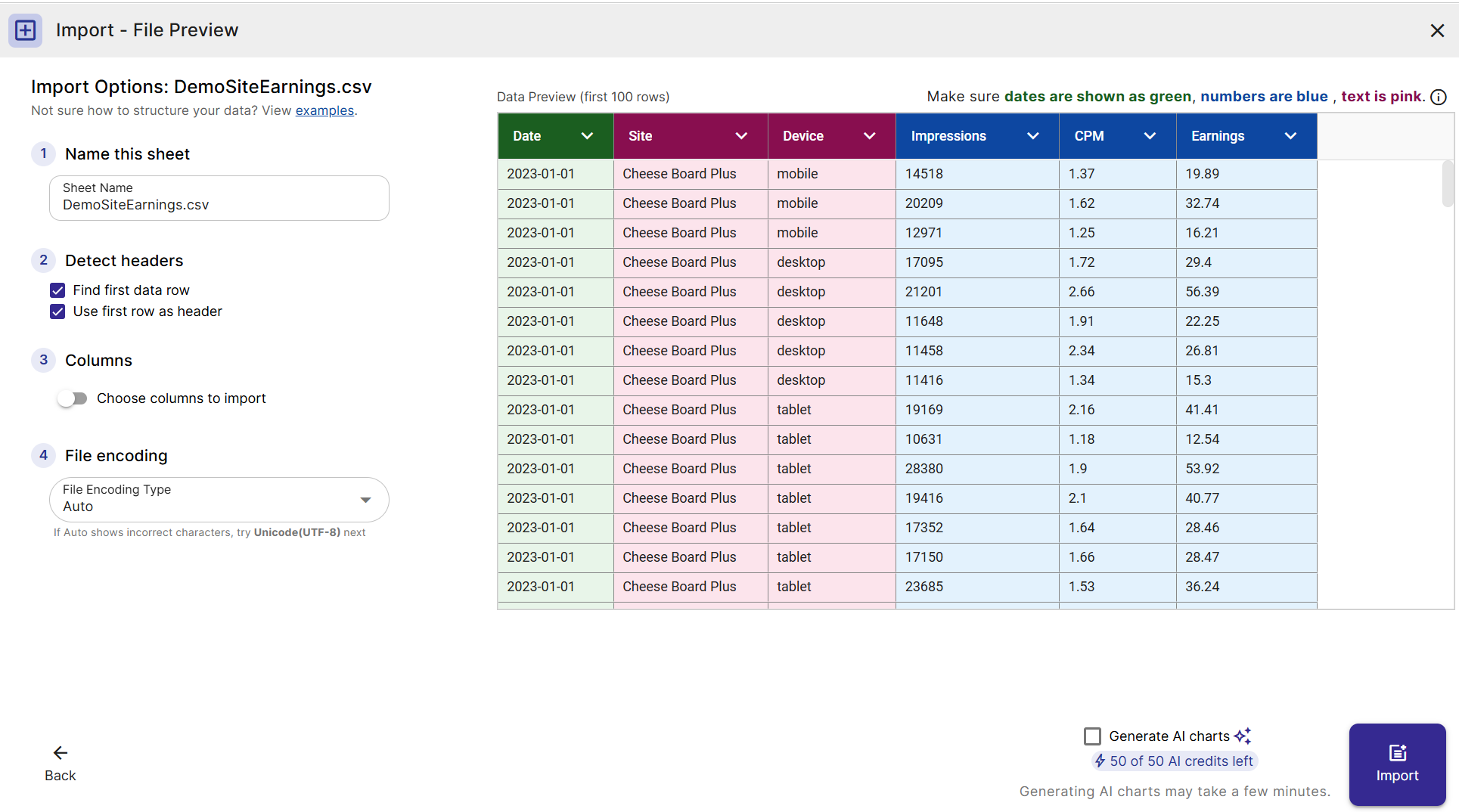
By default, a sheet imported from a link is named after the website and the file (ex: data.ny.gov export.csv). Type a new name in Name this sheet to change it.
An Excel or OpenDocument workbook with several pages imports one sheet per page. A Pages dropdown lets you choose which pages to import. See Workbooks with multiple pages for details.
Check the Generate AI charts box next to the Import button to create three AI recommended charts as soon as the sheet is imported.
Sync the Sheet with the Link
Every sheet imported from a link stays connected to its web address as a Web Link data source. Open the sheet’s menu to see the link listed under Synced From.
When the file at the link is updated, sync the sheet to replace its data with the latest version of the file. Your charts, data tables, dashboards and embeds built on the sheet update with the new data.
Sync now
Open Sync Settings from the sheet menu and click Sync Now. InstaCharts downloads the file again and updates the sheet. Each sync counts as one task against your workspace’s monthly task limit, and the Sync Now button turns off when the workspace has used all of its tasks for the month.
Sync settings for a link
The Sync Settings dialog has the same settings for a link as for a Google file:
- Keep InstaCharts column names keeps any column names you changed in InstaCharts when the file is synced.
- Use first row as header reads the first row of the file as the column names.
- Find first data row skips title rows, blank rows and incomplete rows at the start of the file.
- Page picks which workbook page to sync. It appears for Excel and OpenDocument files with more than one page.
Sync on a schedule
Paid workspaces can sync a link on a schedule, so the sheet picks up new data without anyone opening it. Choose a Sync Interval in the Sync Settings dialog:
| Interval | What it does |
|---|---|
| None | The sheet only syncs when you click Sync Now |
| Hourly | Downloads the file from the link once an hour |
| Daily | Downloads the file from the link once a day |
| Weekly | Downloads the file from the link once a week |
| Monthly | Downloads the file from the link once a month |
The Automatic interval is available for Google files only, because Google tells InstaCharts when a file changes. A link is checked on the schedule you pick.
Each scheduled sync downloads the whole file and counts as one task, so pick the longest interval that keeps your charts current (ex: a daily schedule uses about 30 tasks a month). A scheduled sync where InstaCharts reaches the website but the download or the file fails also counts as a task, and the next sync runs at the next scheduled time.
Turn on Pause syncs to stop scheduled syncs for a while. Sync Now keeps working while syncs are paused.
Task history
Syncs from a link show in your workspace’s task history as Link Sync Manual for Sync Now and Link Auto Sync for scheduled syncs. See Tasks for how tasks are counted.
Troubleshooting
“This link opens a web page.” The link points at a web page instead of a file. Find the download or export button on that page and copy its link.
“InstaCharts can’t open this address.” The address could not be reached, or it points at a private network. Check the address for typos and make sure anyone on the internet can open it without logging in.
“InstaCharts only downloads files from secure links.”
The link, or a page it redirects to, starts with http://. Use the https:// version of the address.
“File is too large.” The file is larger than your plan allows. Upgrade your plan to import larger files, or link to a smaller version of the data.
“The website took too long to send the file.” The website was slow to respond. Try again later, or link to a smaller file.
“Too many link imports in the last few minutes.” Each preview and import downloads the file again. Wait a few minutes and try again.
The sheet stopped updating on its schedule. Open Sync Settings and click Sync Now to see the error from the website. Check that the link still downloads the file, that the workspace is on a paid plan, that Pause syncs is off, and that the workspace has tasks left for the month.
Frequently Asked Questions
Do I need to download the file to my computer first? InstaCharts downloads the file from the link for you, and downloads it again each time the sheet syncs.
Can I import a private file? The link has to be public. For files in Google Drive that you want to keep private, share them with InstaCharts and use the Import from Google Sheets guide.
How often can a link sync? Paid workspaces can sync a link on a schedule of hourly, daily, weekly or monthly. You can also click Sync Now whenever the workspace has tasks left for the month.
What happens to my charts when the file changes? After a sync, every chart, data table and dashboard built on the sheet shows the new data. If you renamed columns in InstaCharts, turn on Keep InstaCharts column names so the sync keeps your names.
How is this different from Update Sheet Data? Update Sheet Data updates a sheet with a file from your device and can add rows or columns. Syncing from a link replaces the sheet’s data with the file at the web address.
Next Steps
How to Change Sync Settings
How to Embed Charts in a Website that stay up to date